Baldur's Gate 3 Vulkan Driver Crash Fix — Larian Launcher Init Error
Baldur's Gate 3
Baldur's Gate 3 Vulkan Driver Crash — DX11 Init Error & File Verification Fail on Larian Launcher
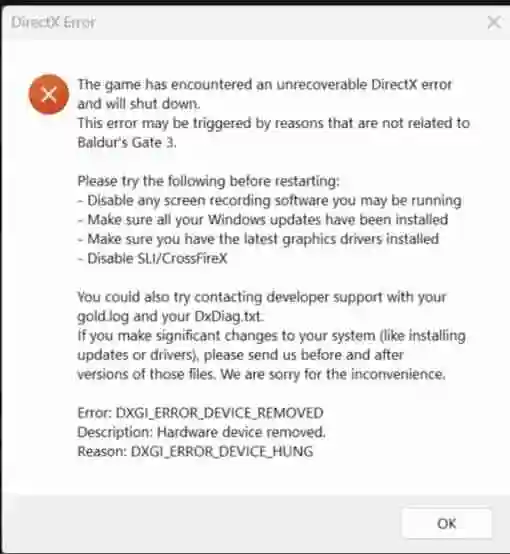
You open the Larian Launcher, click Play, and BG3 either throws a Vulkan initialization error before the game window even appears, or it opens briefly and crashes with a DX11 error dialog. Sometimes the Larian Launcher itself flags a file verification failure — even on a brand new install where nothing's been touched. The game never reaches the main menu. In some cases you get a black window that flickers for a second before dying. In others, the crash reporter opens immediately with a Vulkan or graphics API error in the log. A small percentage of players see the error message and nothing else — no crash reporter, no log, just a dead process. This hits hardest on machines where Vulkan support is misconfigured or partially installed — meaning Vulkan runtime files are present but the GPU driver's Vulkan layer is outdated or broken. The file verification error from the Larian Launcher is a separate but related problem: the launcher sometimes reports corrupted files when the actual issue is a permissions conflict or a partial GOG/Steam sync that left metadata out of date. Windows 10 and 11 are both affected. Nvidia and AMD GPUs hit this, but integrated GPU configurations and dual-GPU laptops are especially prone.
Deep Dive: Why This Error Occurs
Baldur's Gate 3 ships with Vulkan as its default renderer on PC. Vulkan is lower-level than DX11 — it gives developers more direct control over the GPU, but it also means the game depends heavily on the GPU driver's Vulkan implementation being correct and current. When you install or update a GPU driver, it registers a Vulkan ICD — a small configuration file that tells the Vulkan runtime which GPU to use and how to talk to it. If that file is missing, outdated, or pointing to a GPU that doesn't support Vulkan properly (like an older iGPU), BG3's Vulkan layer throws an initialization error before a single frame is rendered. The Larian Launcher verification error is usually a red herring. The launcher checks file hashes against its own manifest, but that manifest can fall out of sync after a partial cloud sync or a Steam update that didn't fully complete. It reports a failure even when the actual game files are fine — the underlying problem is almost always the Vulkan layer, not the game files themselves. Larian has shipped multiple patches to improve Vulkan stability and added DX11 as an alternative renderer specifically because of these launch issues. The DX11 fallback in the launcher settings exists precisely for cases where Vulkan can't initialize cleanly.
Primary Root Causes
Outdated or broken Vulkan driver layer — BG3 uses Vulkan as its primary renderer. If the GPU driver's Vulkan ICD (installable client driver) is outdated or corrupted, the game can't initialize the graphics pipeline and crashes immediately. Vulkan runtime not registered in Windows — the Vulkan runtime needs to be registered in the Windows registry. A clean Windows install, a partial driver install, or certain AV tools can wipe or block this registration. Larian Launcher file verification false positive — the launcher compares local file hashes against its manifest. If Steam or GOG cloud sync hasn't fully completed, or if any file timestamp is off, it flags verification errors that aren't actual corruptions. Integrated GPU being selected instead of dedicated GPU — on laptops or dual-GPU desktops, BG3 sometimes initializes on the iGPU instead of the Nvidia/AMD card. The iGPU doesn't have full Vulkan support and fails. Missing or outdated Visual C++ redistributables — BG3's Vulkan layer depends on specific Visual C++ packages. A missing 2022 x64 redistributable causes a silent crash during graphics initialization. Conflicting Vulkan layers from other software — OBS, RivaTuner, and certain capture tools install their own Vulkan layers. If those layers are from an older version, they can intercept BG3's Vulkan calls and cause a crash. Antivirus blocking Larian Launcher or bg3.exe — Windows Defender and third-party AV tools occasionally flag Larian's launcher components and silently block execution, producing the file verification error as a side effect. Corrupted shader cache from a previous patch — BG3 stores compiled Vulkan shaders locally. A bad patch can leave stale shaders that fail validation on next launch.
How to Fix This Error (Step-by-Step)
Update your GPU driver first. Nvidia: GeForce Experience → Drivers → Express Install. AMD: AMD Software: Adrenalin Edition → Home → Check for Updates. This reinstalls the Vulkan ICD layer cleanly alongside the driver and fixes the majority of Vulkan init crashes.
Reinstall the Vulkan runtime manually. Download the latest Vulkan Runtime installer from https://vulkan.lunarg.com/sdk/home — grab the Runtime installer for Windows, not the SDK. Run it as administrator and reboot.
Add BG3 and the Larian Launcher to your antivirus exclusions. The full install path is typically C:\Program Files (x86)\Steam\steamapps\common\Baldurs Gate 3\ for Steam, or C:\Program Files (x86)\GOG Galaxy\Games\Baldurs Gate 3\ for GOG. Add both the game folder and C:\Users\YourName\AppData\Local\Larian Studios\ as exclusions.
Essential Troubleshooting FAQs
Does this happen on both Steam and GOG versions?
Yes — both versions use the Larian Launcher and the same Vulkan renderer. The fix steps apply to both. The one difference is where you verify files: Steam uses the Steam client verify function, GOG uses GOG Galaxy's Verify / Repair option under Manage Installation.
I switched to DX11 in the launcher and now the game loads, but performance is worse. Is that normal?
Yes, DX11 is slightly slower than Vulkan in BG3, particularly in Act 3 and areas with lots of characters on screen. It's a usable workaround while you sort the Vulkan issue. Once you've updated your driver and reinstalled the Vulkan runtime, switch back to Vulkan in launcher settings and test again.
I've done every step and it's still throwing a Vulkan crash. What now?
Do a clean GPU driver install using DDU (Display Driver Uninstaller) in safe mode. Boot into Safe Mode, run DDU to fully wipe the existing driver, reboot, and install the latest driver fresh. A partially corrupted driver installation won't be fixed by a standard update — DDU removes it completely. After reinstalling the driver, run the Vulkan Runtime installer again before launching BG3.
My laptop has both an Intel iGPU and an Nvidia GPU. Does that make this worse?
Yes, dual-GPU laptops are one of the most common setups for this error. Windows sometimes routes BG3 to the Intel iGPU by default, which has limited Vulkan support. Force BG3 to the Nvidia card in Windows Graphics Settings and in Nvidia Control Panel under Manage 3D settings → Program Settings → add bg3.exe → set preferred GPU to your Nvidia card.
How do I stop this happening after future BG3 patches?
After major BG3 patches, delete the ShaderCache folder at C:\Users\YourName\AppData\Local\Larian Studios\Baldur's Gate 3\ShaderCache before launching. Patch updates frequently change Vulkan shaders, and launching with a stale cache from the previous version is one of the most consistent post-patch crash triggers. Takes 30 seconds to delete.
Summary
Start with your GPU driver — update it, and if the crash appeared right after a driver update, roll back one version. A fresh driver reinstalls the Vulkan ICD layer that BG3 depends on, and that alone fixes it for most players. If the Larian Launcher is flagging verification errors on top of the Vulkan crash, run the verify/repair function through Steam or GOG and add the game folder to your AV exclusions. Those two together clear the false positive. Still crashing after that? Switch to DX11 in Larian Launcher settings to confirm the game actually loads, then troubleshoot Vulkan separately — reinstall the Vulkan Runtime from LunarG, delete the ShaderCache folder, and if nothing else works, use DDU in safe mode for a clean driver install. That's the path that clears it.