Counter-Strike 2 Executable Has Stopped Working Fix — Random Freeze & CTD
Counter-Strike 2
CS2 Executable Has Stopped Working — Random Freeze, Audio Loop, and Crash to Desktop
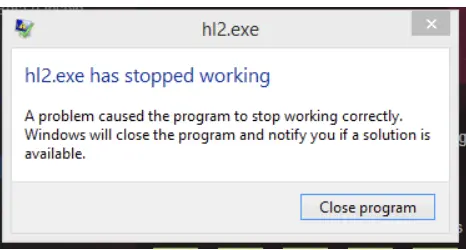
Mid-match, CS2 locks up completely. The screen freezes solid, the last half-second of audio loops on repeat for about three seconds, then the whole thing crashes to desktop. Windows might flash a "cs2.exe has stopped working" notification before closing it out. It's not a gradual slowdown — it's instant. One frame you're holding an angle, the next everything's frozen and you're staring at your desktop. The crash hits hardest during high-load moments: smoke grenades popping, big multi-player pushes, or dense scenes on maps like Inferno or Nuke. It's not limited to low-end rigs. Players on RTX 3080s and 4090s have posted about it regularly. Both Nvidia and AMD users are affected. The freeze-then-crash with looping audio is a specific signature — it's not a random generic crash. That pattern points to a GPU driver hang or a render thread stall rather than a typical game bug. Crashes can disappear for a week, then hit three times in one session with no obvious trigger.
What Causes This Error
GPU driver crash (TDR event) — The most common cause. The driver stops responding under load, Windows attempts recovery, and CS2 doesn't survive the handshake. Corrupt Vulkan shader cache — CS2 uses Vulkan. A corrupt or incomplete shader cache forces the render thread to stall during heavy scenes. Overlay conflicts — Discord, Steam overlay, GeForce Experience, RTSS, and MSI Afterburner OSD all inject code into the CS2 process. Any of them can stall the render thread at the wrong moment. Overclocked GPU or unstable RAM (XMP/EXPO) — Instability under peak load during heavy firefights can crash the driver. XMP and EXPO RAM profiles are a surprisingly common hidden culprit. Corrupt or outdated game files — CS2 updates frequently. A bad update or partial download can leave the executable or a dependent DLL in a broken state. VRAM exhaustion — On GPUs with 6GB or less of VRAM, CS2 can run out of video memory in smoke-heavy scenes, triggering a driver reset and crash. Conflicting or legacy launch options — Old CS:GO launch options carried into CS2 — especially deprecated DirectX flags — can destabilize the engine. Background processes starving resources — A browser with video, streaming software, or Discord video calls running alongside CS2 can cause a thread hang under peak CPU and RAM pressure.
Step-by-Step Fix
Open Steam, right-click Counter-Strike 2, go to Properties > Local Files, and click Verify Integrity of Game Files. CS2 updates frequently and a corrupt DLL or executable from a recent patch is an easy first cause.
Do a clean install of your GPU driver. On Nvidia: download the latest driver from nvidia.com, run it, choose Custom Install, and check Perform a clean installation. On AMD: run the AMD Cleanup Utility to fully strip the old driver first, then install fresh from AMD's site.
Clear CS2's Steam shader pre-cache. Navigate to C:\Program Files (x86)\Steam\steamapps\shadercache\730\ and delete the folder contents. CS2 rebuilds the cache on next launch. A corrupt entry here causes the render thread to stall mid-match when it tries to load an unresolvable shader.
Why This Happens
The looping audio is the tell. When CS2's render thread hangs — because of a GPU driver timeout, a memory fault, or a blocked DLL call — Windows freezes the audio output at whatever sample was playing at that exact moment. That's the loop you hear. The OS is running a recovery mechanism called TDR (Timeout Detection and Recovery), which tries to reset the GPU driver without crashing the whole system. CS2 doesn't survive that reset cleanly, so the executable terminates. CS2 is Vulkan-first, which is fundamentally different from older DirectX titles. Vulkan gives the game more direct access to the GPU, but it also means driver-level instability hits faster and harder. A driver version that works fine in every other game can still misbehave specifically with CS2's Vulkan implementation — especially during the spike moments when several smokes go off simultaneously and the GPU load jumps hard. The overlay problem is real and underappreciated. Overlays inject code directly into the CS2 process at runtime. If that injection coincides with a heavy shader load, it can stall the render thread long enough to trigger the TDR timeout and kill the exe. Turning off all overlays before competitive sessions removes that variable entirely. Valve has pushed engine stability updates addressing some of these crashes, but GPU-driver-level TDR events can't be fully patched from the game side — that's driver territory.
Frequently Asked Questions
Does this crash happen only in competitive, or in other modes too?
It can hit in any mode, but competitive gets reported more because matches are longer and GPU load stays higher for more sustained periods. The longer the session and the heavier the map, the more likely an unstable driver or RAM profile triggers it.
I'm on a gaming laptop with both an integrated GPU and a dedicated GPU. Does that affect this?
Directly. If Windows is running CS2 on the iGPU instead of your dedicated GPU, it'll crash under almost any load. Check Windows Graphics Settings and your GPU software (Nvidia Optimus or AMD Switchable Graphics) and make sure CS2 is explicitly assigned to the dedicated GPU.
I did every step and it's still crashing. What's left?
Full clean reinstall. Uninstall CS2 through Steam, then manually delete C:\Program Files (x86)\Steam\steamapps\common\Counter-Strike Global Offensive\ before reinstalling. If crashes continue after a fresh install, run FurMark to stress-test your GPU for hardware instability — at that point, the problem may be the GPU itself.
This started after a specific CS2 update. Is it a Valve bug?
Possibly. Check the CS2 update notes on Steam and look at the CS2 subreddit and Steam community forums around that patch date. If it's a widespread regression, Valve typically pushes a hotfix within a few days. You can roll back to a previous build temporarily via Steam > Properties > Betas and selecting an older version.
How do I stop this from coming back after future updates?
Clear the shader cache at C:\Program Files (x86)\Steam\steamapps\shadercache\730\ after any major CS2 update, keep overlays off during competitive play, and don't add launch options you don't fully understand. Keeping your GPU driver current is the single most effective long-term prevention.
Summary
The freeze with looping audio almost always means a GPU driver crash or an overlay conflict — hit those first. Do a clean install of your GPU driver and disable every overlay running alongside CS2 (Steam, Discord, GFE). If it's still crashing, clear the shader cache at C:\Program Files (x86)\Steam\steamapps\shadercache\730\ and wipe your launch options. For crashes that survive all of that, disable XMP/EXPO in your BIOS and test at stock RAM speeds — this is an underrated cause that most guides skip. Nvidia users should also set Shader Cache Size to Unlimited in Nvidia Control Panel's CS2 program settings before assuming a full reinstall is necessary.