Cyberpunk 2077 Has Flatlined Fix
Cyberpunk 2077

Cyberpunk 2077 Has Flatlined — Random Crash to Desktop Mid-Game
You're mid-combat in Night City, guns blazing, then the screen goes black and you're back at the desktop. Sometimes there's a crash report window that reads "Cyberpunk 2077 has flatlined." Sometimes Windows just kills the process silently. Either way, the game is gone and you've lost progress since the last save. It doesn't happen on the main menu or during cutscenes. It's mid-game — specifically during heavy combat scenes with lots of enemies and particle effects on screen, or right as an autosave triggers. Some players get it every 20 minutes. Others go hours fine and then hit a wall in a specific area. The "has flatlined" message is CD Projekt Red's crash reporter catching an unhandled exception, so it's a broad bucket. It covers memory issues, driver crashes, CPU bottlenecks, and mod conflicts — which is why the fix varies by rig. Players on Nvidia and AMD cards are both affected. High-end machines aren't immune; this hits 4080 rigs as much as mid-range GPUs, which points away from raw performance being the culprit.
Deep Dive: Why This Error Occurs
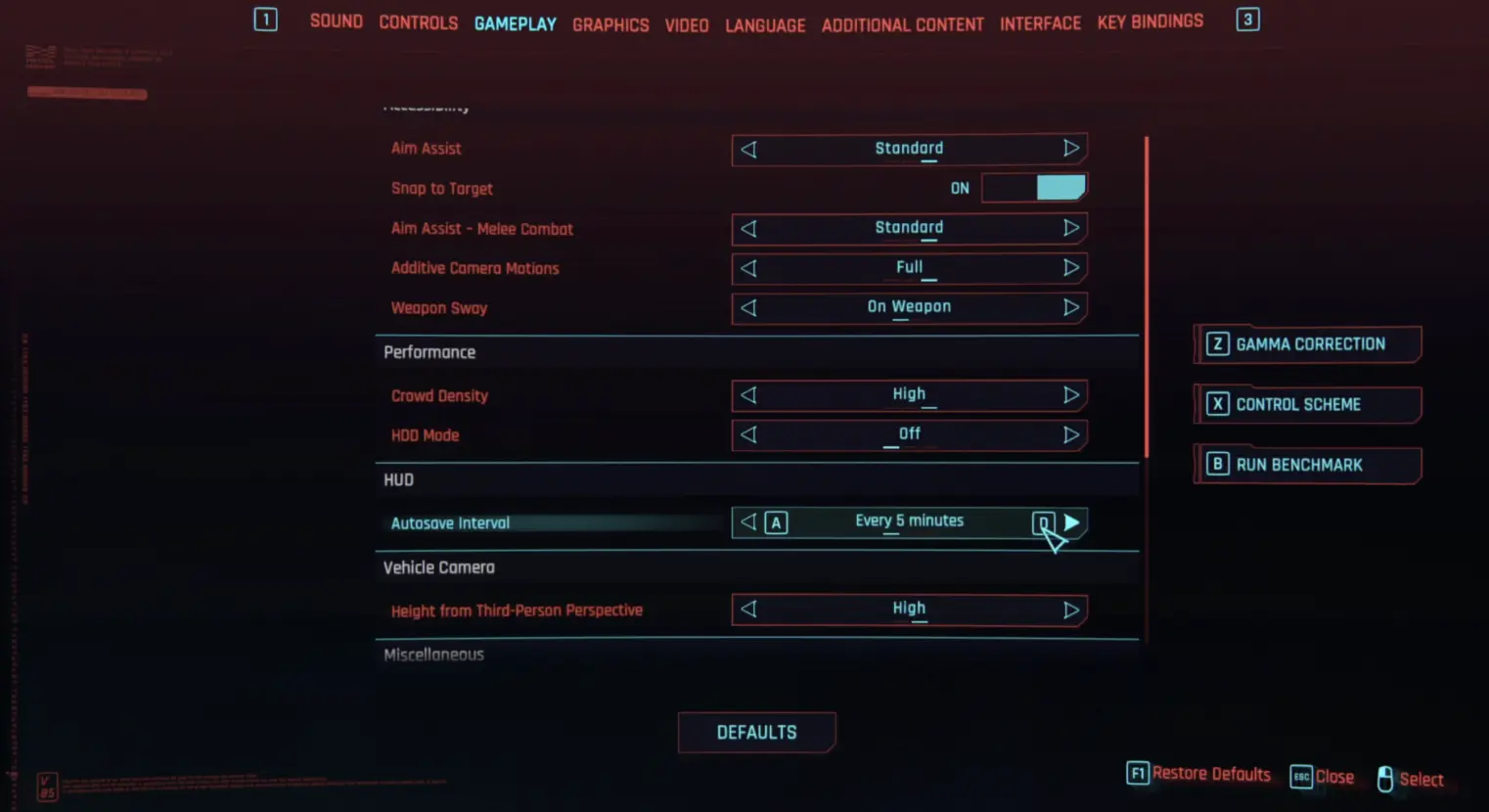
"Cyberpunk 2077 has flatlined" is a catch-all crash reporter message. It means the game hit an unhandled exception and the process died — the message itself doesn't tell you what caused it, which is why players get the same error from completely different root causes. The combat crash specifically comes from the game's DX12 renderer being pushed into a state it can't recover from. Night City's combat scenes are among the most GPU-intensive moments in the game — lots of enemies, physics, particle effects, and dynamic lighting all hitting at once. If your VRAM is near capacity, one frame that pushes over the limit causes the driver to lose the frame buffer and crash the process. You don't get a graceful error — you just get a dead game. The autosave collision is a separate but related issue. CP2077 pauses certain game threads briefly to write save data. Under normal load that's fine. During peak combat, the CPU is already scheduling a dozen threads for AI, physics, and audio — adding a save write causes a thread priority conflict on some systems that ends in a CTD. CD Projekt Red has patched this multiple times since launch, and 2.x improved stability significantly. But the crash persists on specific hardware combinations, particularly with ray tracing enabled on cards near the VRAM ceiling for that feature set.
Primary Root Causes
VRAM overflow during heavy scenes — Cyberpunk 2077 is aggressive about VRAM usage, especially with ray tracing on. Cards with 8GB or less can overflow during combat, causing an instant CTD. Autosave triggering during high GPU load — the game tries to write a save file while the GPU is maxed out during combat. The CPU stall from the I/O write, combined with high GPU load, pushes the system over a threshold and crashes. Outdated or unstable GPU driver — specific Nvidia and AMD driver versions have known conflicts with Cyberpunk's DX12 implementation. A bad driver version will produce consistent mid-game crashes even on powerful rigs. Corrupted game files — particularly common after patches that touched shader files. A partial update leaves bad shaders that cause the GPU to choke on specific in-game effects. Mod conflicts — even after 2.x patches, some older mods touch memory allocation or replace game scripts in ways that produce crashes under load. Any mod touching red4ext, cybercmd, or .archive files is a potential culprit. Shader compilation not finished — if you skip or interrupted the shader pre-compilation on first launch, the game compiles shaders in the background during play, which causes stutters and crashes mid-combat. Overclocked GPU or RAM — any unstable OC becomes visible under Cyberpunk's sustained load. It's one of the most demanding games for OC stability. Background tasks stealing bandwidth — cloud sync (GOG Galaxy, Steam cloud), Discord, or Windows Update running in the background during a combat scene can tip an already-stressed system over.
How to Fix This Error (Step-by-Step)
•For NVIDIA users:
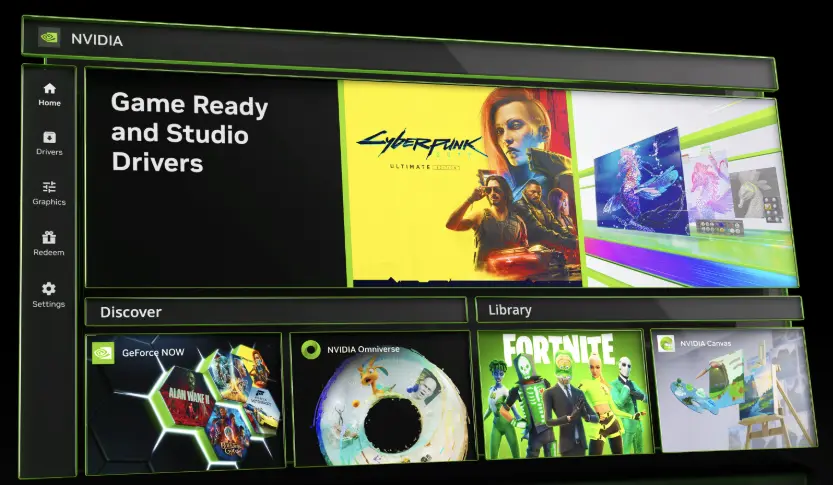
- Open the "NVIDIA GeForce Experience" desktop application on your PC.
- Click on the "Drivers" tab located in the top-left corner of the window.
- Click the green "Check for Updates" button on the right-hand side.
- If an update is found, click "Download" and choose the "Express Installation" option.
• For AMD users:
- Right-click your desktop and open "AMD Software: Adrenalin Edition".
- Navigate to the "Home" tab on the top menu bar.
- Look at the right sidebar under the "Driver & Software" section.
- Click "Check for Updates" and install the latest stable Adrenalin release.
Combat scenes feature heavy particle effects that push your graphics card's Video RAM (VRAM) over its natural capacity limit, forcing a clean desktop crash.
- Launch Cyberpunk 2077 and wait on the Main Menu interface.
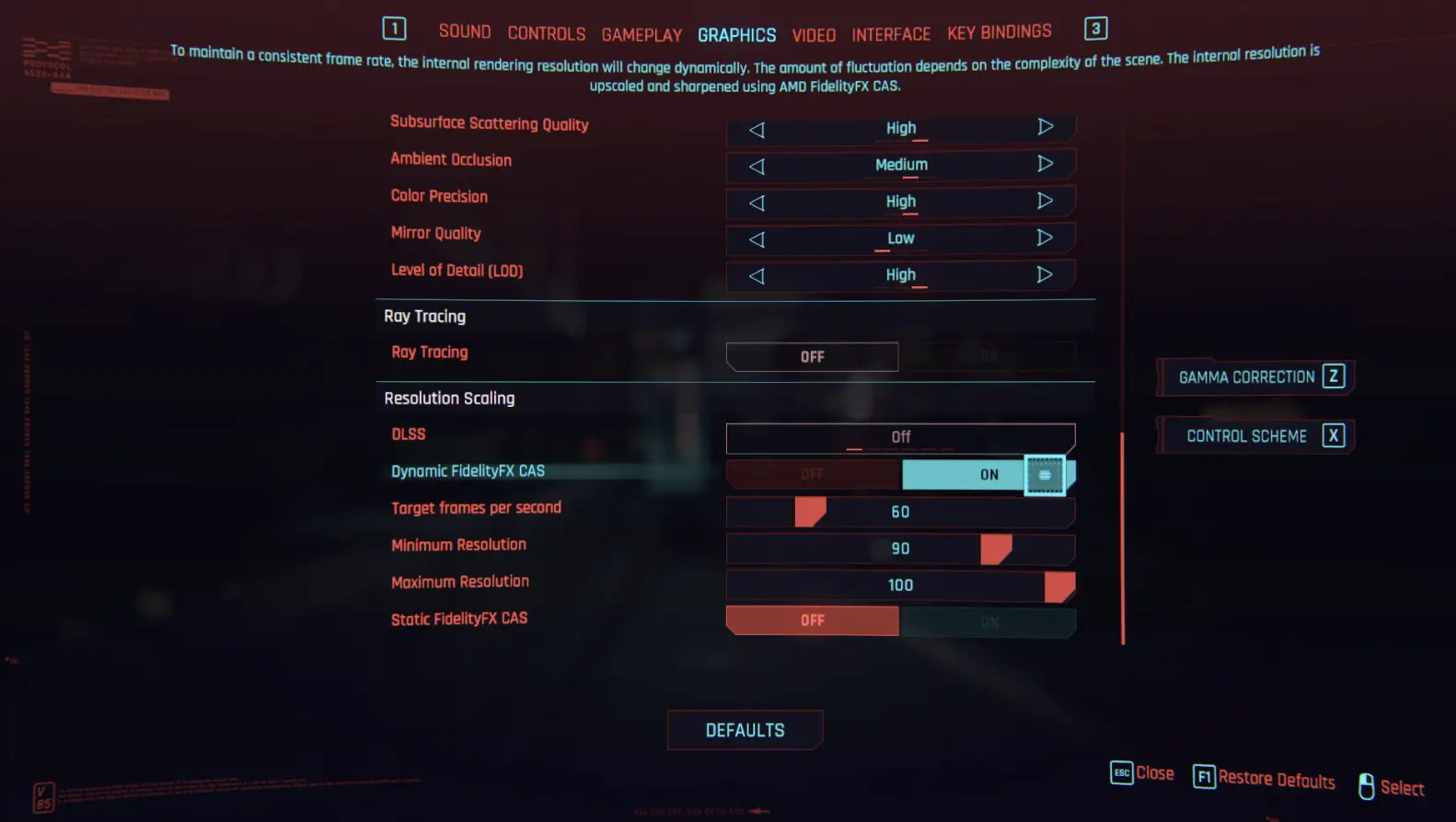
- Select "Settings" from the list and move completely over to the "Graphics" tab.
- Scroll down until you spot the "Ray Tracing" sub-section category.
- Toggle the main "Ray Tracing" switch to "OFF", or drop your current Ray Tracing setting down by exactly one full tier.
- Scroll up slightly to find the "Texture Quality" configuration setting.
- Drop it down from High to Medium (or Medium to Low) to clear up massive blocks of graphic frame buffer capacity before you load your game slot.
Essential Troubleshooting FAQs
Does this happen on GOG as well as Steam?
Yes, the "has flatlined" crash is engine-level, not launcher-level. The fixes above apply to both Steam and GOG versions. The one difference: GOG Galaxy's cloud sync is more aggressive by default, so on GOG it's worth disabling auto-sync in GOG Galaxy → Settings → Features → Cloud Saves as an extra step.
I turned off ray tracing and it still crashes during combat. What's next?
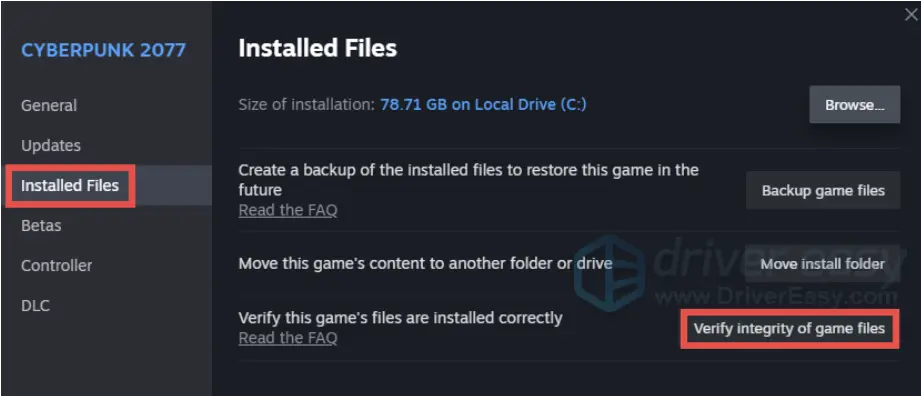
Drop Crowd Density in Graphics settings — it's one of the most CPU-intensive settings in the game. Also lower Shadow Range and Volumetric Fog Resolution. If crashes continue, verify game files and check if any background OC is running.
Summary
The two fixes that clear this for most people: dropping ray tracing by one tier (or off entirely) to relieve VRAM pressure, and disabling autosave during heavy sessions to kill the GPU-load collision. Do those two first. If the crashes keep coming after that, verify your game files — a corrupted shader from a partial patch update is the next most common culprit. If you're on mods, pull them all out and test vanilla before anything else, because a single outdated mod touching memory allocation can cause this on an otherwise clean install. For persistent crashes with no obvious cause, open Windows Event Viewer at the crash timestamp and look for nvlddmkm or DXGI errors. That'll point you directly at whether it's a driver issue or a DX12 problem, and you can target the fix from there.