Ghost of Tsushima Director's Cut Crash on Launch Fix — PlayStation Overlay CTD
Ghost of Tsushima Director's Cut
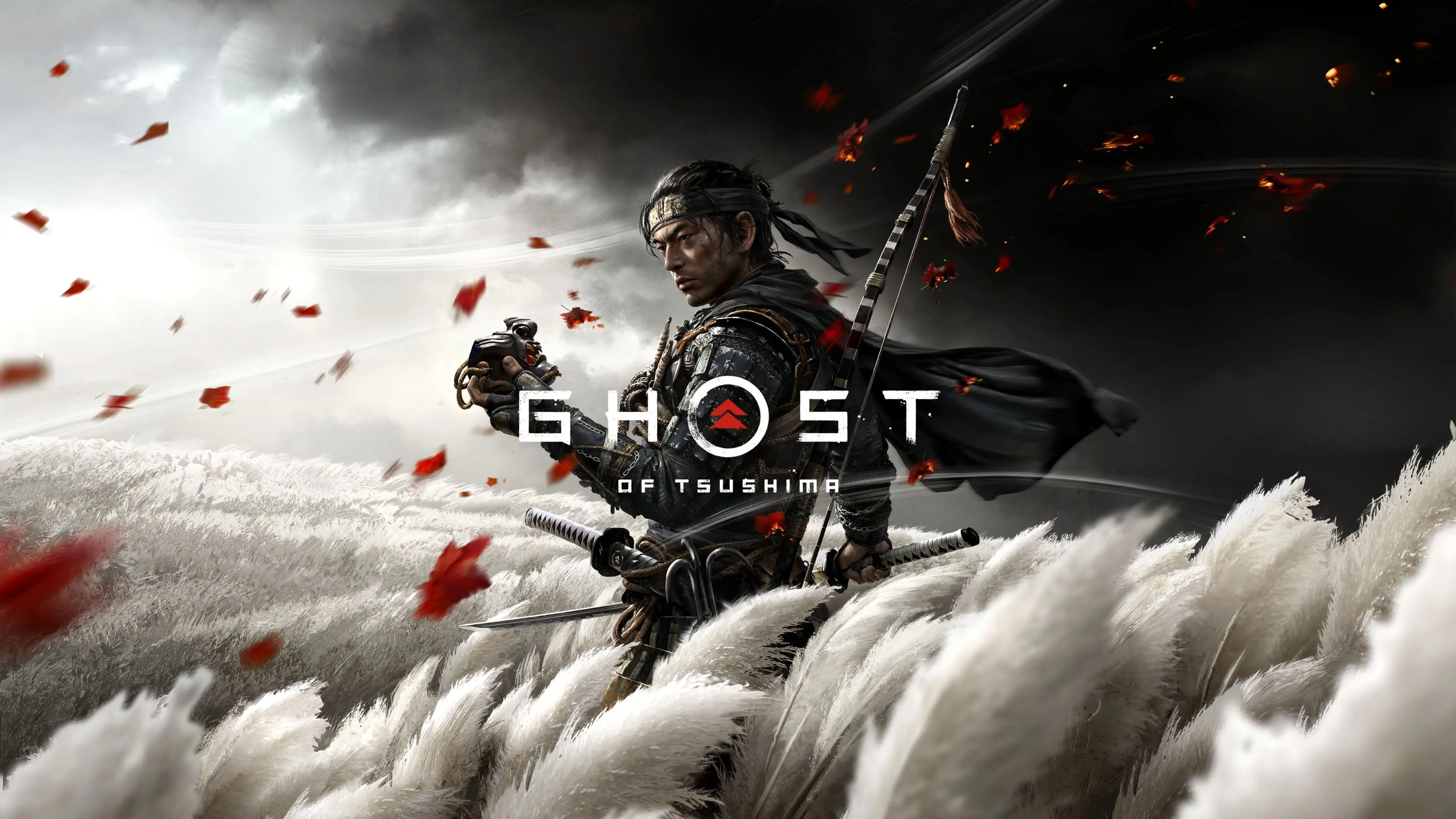
Ghost of Tsushima Director's Cut Crash to Desktop on Launch — PlayStation PC SDK Overlay Conflict
You click Play in Steam, the Sony or PlayStation logo flashes — or doesn't — and then you're back at your desktop. No error message. No crash report. The game just dies. Sometimes it gets a second or two into launch before flatling, sometimes it doesn't render anything at all. This one is almost instant, which rules out shader compilation or slow loading as the cause. The culprit is the PlayStation PC SDK that's built into the PC port. It handles PSN authentication and injects a PlayStation-branded overlay before the game engine even starts. If another overlay tool is also injecting into the process at the same moment — Steam overlay, Discord, GeForce Experience, RivaTuner — they collide and the game exe terminates before you see anything. It's not a hardware or GPU issue. Players on high-end rigs hit this as often as anyone else. Windows 11 and Windows 10 users both report it, and the pattern tends to spike after game updates that refresh the SDK version.
What Causes This Error
PlayStation PC SDK conflict with Steam overlay — Both try to inject into the game process at launch. The collision kills the exe before the engine loads. Discord overlay injection conflict — Discord's overlay is one of the most commonly reported sources of this specific crash alongside the PlayStation SDK. GeForce Experience or AMD overlay — Nvidia and AMD's in-game overlays trigger the same injection conflict as Discord. Having any of them active at launch is enough. RTSS or MSI Afterburner OSD — RivaTuner Statistics Server injects a monitoring layer that clashes with the PlayStation SDK's initialization sequence on launch. Antivirus or Windows Defender blocking SDK DLLs — Security software flags PSN SDK DLLs as suspicious after an update. Mid-load blocking produces an instant, silent crash. Corrupted PlayStation PC SDK installation — The SDK itself can ship damaged after a bad patch download. It fails initialization every time and the game can't start. Missing Visual C++ Redistributables — The PlayStation PC SDK depends on specific VC++ runtime versions. Missing or outdated installs cause it to fail on launch silently. Lingering orphan processes from a previous crash — A ghost GhostOfTsushima.exe or PlayStation SDK process left over from a prior crash blocks a fresh launch attempt.
Step-by-Step Fix
Disable every overlay before launching. In Steam Settings > In-Game, turn off the Steam Overlay. In Discord Settings > Game Overlay, disable it. Close GeForce Experience and MSI Afterburner entirely. Launch Ghost of Tsushima with zero overlays injecting — this alone fixes the crash for the majority of players hitting this issue.
Open Steam, right-click Ghost of Tsushima DIRECTOR'S CUT, go to Properties > Local Files, and click Verify Integrity of Game Files. A PlayStation PC SDK file that shipped corrupted after a recent update fails silently on launch with no error dialog.
Add the full game install folder — C:\Program Files (x86)\Steam\steamapps\common\Ghost of Tsushima DIRECTOR'S CUT\ — as an exclusion in Windows Defender and any third-party antivirus. PSN SDK DLLs get flagged regularly after patch updates.
Why This Happens
Ghost of Tsushima on PC ships with Sony's PlayStation PC SDK hardwired in. It's not optional and it's not removable. The SDK loads before the game engine does — its job is to handle PSN authentication and inject the PlayStation-branded in-game overlay. That injection happens in a specific window right at process startup. The problem is that Steam's overlay, Discord's overlay, GeForce Experience, and RivaTuner all work the same way. They all inject code hooks into the game process at launch. When multiple tools try to inject at the same time the SDK is initializing its PSN connection, they compete for the same process hooks. The PlayStation SDK is especially sensitive to interruptions during that window because it's simultaneously establishing a network connection, loading DLLs, and setting up the overlay. If anything disrupts that sequence — another overlay winning the injection race, an antivirus scanning a DLL mid-load, a missing VC++ runtime — the process terminates instantly. That's why the crash is silent. There's no game engine running yet to produce a crash log. The SDK fails, the exe exits, and Windows has nothing useful to report. Nixxes has updated the SDK conflict handling in several patches since launch, and the game is meaningfully more stable now than it was at release. But the fundamental issue — multiple overlay tools competing for injection hooks — isn't something they can fully eliminate from their side.
Frequently Asked Questions
Do I actually need a PSN account to play Ghost of Tsushima on PC?
No. PSN sign-in is optional for the single-player campaign and all story content. You only need a PSN account for Legends multiplayer mode. If a PSN connection prompt is part of the launch sequence that's crashing, you can skip it when it appears.
I don't have Discord or GeForce Experience installed and it's still crashing. What else injects overlays?
Check for RivaTuner Statistics Server (RTSS), Fraps, OBS with game capture active at launch, AMD Software's overlay, or any hardware monitoring tool with an OSD feature. All of them inject into game processes the same way. Also check your antivirus logs for blocked DLLs — that's the other common cause when no obvious overlay tool is present.
None of the steps fixed it. What's next?
File a support ticket at support.sonyinteractive.com and include a DxDiag report. Grab any crash logs from %LOCALAPPDATA%\Nixxes\GhostOfTsushima\ if that folder exists on your system. Nixxes has escalated and patched SDK-specific launch crashes before based on submitted reports.
Does disabling the Steam overlay affect Steam achievements in this game?
Steam achievements still track and unlock without the Steam overlay active — achievement tracking is backend, not overlay-dependent. You lose the in-game notification pop-up, but all unlocks register correctly.
How do I stop this from breaking again after a game update?
After any major update to Ghost of Tsushima, run Verify Integrity of Game Files before launching. The PlayStation PC SDK gets updated alongside game patches, and a bad SDK file from an interrupted update is the most common post-patch cause of this crash.
Summary
Disable every overlay first — Steam, Discord, GFE, MSI Afterburner OSD, all of it — and launch the game with nothing injecting into the process. That one change fixes the instant launch crash for most players dealing with the PlayStation SDK conflict. If the game still won't open after clearing all overlays, run Verify Integrity of Game Files and add your game folder to antivirus exclusions. A flagged or corrupted PSN SDK DLL is the next most likely culprit after overlay conflicts. Still dead? Install the latest Visual C++ Redistributables, check for orphan processes in Task Manager, and if nothing else works, do a full manual reinstall — delete the folder before reinstalling, don't just uninstall through Steam.