Grand Theft Auto V Exited Unexpectedly Fix — Loading Screen CTD
Grand Theft Auto V
Troubleshooting Steps & Solutions
Open the Rockstar Games Launcher, click the R★ logo top-left → Settings → Rockstar Games Launcher → click Check for Updates. Let it update fully and restart the launcher before doing anything else.
In the Rockstar Games Launcher, go to Settings → My installed games → Grand Theft Auto V → click Verify integrity. This catches corrupted files from bad updates and is the fix for the majority of loading screen exits.
Add exclusions in your antivirus for the entire GTA V install folder — typically C:\Program Files\Rockstar Games\Grand Theft Auto V\ — and also for C:\Program Files\Rockstar Games\Launcher\. Do this before the next launch.
Open your browser and go to https://aka.ms/vs/17/release/vc_redist.x64.exe and https://aka.ms/vs/17/release/vc_redist.x86.exe. Download and install both Visual C++ 2022 redistributables, then reboot.
Disable all overlays. In Discord: Settings → Game Overlay → toggle off. In GeForce Experience: Settings → General → In-Game Overlay → toggle off. Close any screen capture software from the system tray before launching.
If you're running any mods — including Script Hook V, ASI loaders, or anything that modifies dinput8.dll — remove them entirely by deleting dinput8.dll and the scripts\ folder from your GTA V directory. Vanilla launch first, re-add mods after confirming it loads.
Update your GPU driver. Nvidia: open GeForce Experience → Drivers → Express Install. AMD: open AMD Software: Adrenalin Edition → Home → Check for Updates. A DX11 initialization failure from a stale driver produces exactly this symptom.
If nothing above works, reset the Rockstar Games Launcher's local data. Close the launcher, go to C:\Users\YourName\AppData\Local\Rockstar Games\, and delete the Launcher folder. Reopen the launcher — it'll rebuild the folder fresh and re-authenticate.
Grand Theft Auto V Exited Unexpectedly — Crash to Rockstar Launcher on Loading Screen
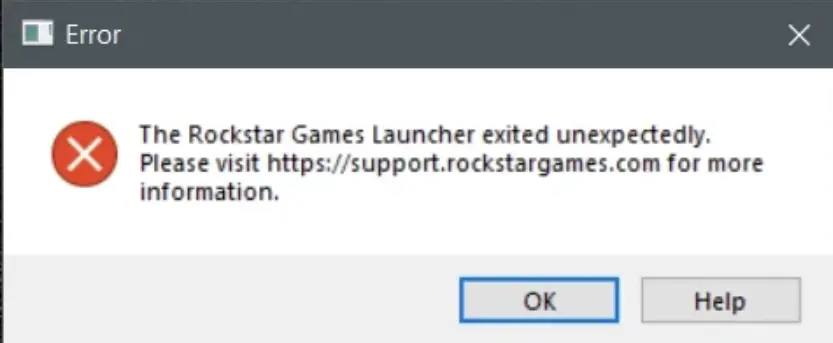
You launch GTA V through the Rockstar Games Launcher, sit through the intro logos, and then the loading screen hits — the one with the sirens and the slowly filling bar. The bar never finishes. The game just closes and drops you back to the Rockstar Games Launcher with no error code, no crash report, nothing. Just gone. It's not a freeze. The game doesn't hang — it actively exits and returns you to the launcher cleanly, which makes it feel like a deliberate shutdown rather than a crash. That's actually a clue: something is triggering GTA V's own exit handler before the game finishes loading. This specific crash point — right on the siren loading screen — is different from a crash-on-launch or a mid-session CTD. It happens after the Rockstar Games Launcher has already authenticated your account, so it's not a login or DRM issue. Players on both Steam and the Rockstar launcher hit this. Windows 10 and 11 are both affected, and it's appeared after several GTA V patches and after Rockstar launcher updates.
What Triggers This Issue?
Corrupted game files from a partial update — GTA V's update patches are large and frequently interrupted. A bad write to a core file causes the exit handler to trigger on load. Rockstar Games Launcher out of date — if the launcher itself isn't on the latest version, it can fail to hand off authentication to the game process correctly, killing it mid-load. Missing or outdated Visual C++ redistributables — GTA V requires specific versions of Visual C++ 2015–2022. If any are missing or corrupted, the game exits silently during the loading phase. Conflicting background processes — third-party overlays (Discord, Steam, GeForce Experience) or screen recording tools can conflict with GTA V's anti-tamper checks during the loading screen. Antivirus blocking GTA5.exe or PlayGTAV.exe — Windows Defender or third-party AV tools sometimes flag Rockstar's Social Club components and block execution mid-load. Corrupted Social Club / Rockstar Games Launcher data — the launcher's local cache can get corrupted independently of the game files, causing authentication handoff to fail. Outdated GPU driver — specific driver versions cause a DX11 initialization failure that registers as a clean exit rather than a crash. Mods or a modified dinput8.dll — any mod that hooks into the game at launch, including ASI loaders, can break the loading sequence after an official patch changes expected file states.
Common Error Queries & FAQs
Does this happen on Steam as well as the Rockstar Games Launcher?
Yes, though the trigger differs slightly. On Steam, the game still uses the Rockstar Games Launcher in the background — it launches automatically. Verify files through Steam (right-click the game → Properties → Installed Files → Verify integrity) and then also update the Rockstar launcher separately. Both need to be current.
I verified files and it says everything's fine, but it still crashes on the loading screen. What now?
Verification passes don't catch every corrupted file — it checks file size and hash but misses some edge cases after partial patches. The most reliable next step is nuking the Rockstar launcher cache at C:\Users\YourName\AppData\Local\Rockstar Games\Launcher\ and letting it rebuild. Also check that your Visual C++ redistributables are actually installed by opening Apps & Features in Windows and searching for "Visual C++."
Could this be an online/GTA Online specific issue?
No — this crash happens during the initial loading screen before the game even asks whether you want story mode or GTA Online. It's not a GTA Online server issue. If the game loads fine into story mode but crashes entering GTA Online, that's a separate issue with a different fix path.
Technical Analysis: Why It Happens
GTA V's loading screen does a lot more than just load assets. It's also running a series of integrity checks — verifying file hashes, initializing the Social Club backend, loading DirectX shaders, and checking for injected DLLs. If any of those checks fail, the game calls its own exit routine cleanly rather than crashing. That's why you land back on the Rockstar launcher with no error message — the game decided to quit, not Windows. The most common trigger is a mismatch between what the game expects and what's actually on disk. A patch that didn't finish downloading, a Visual C++ package that's the wrong version, or a mod DLL that the updated game no longer tolerates — all of them trip the same exit check. The launcher update is a separate layer on top of that. Rockstar's launcher handles authentication tokens and passes them to the game process. If the launcher is running an older version after Rockstar pushed a backend update, the token handoff silently fails, and the game exits before it can validate your account against the Social Club servers. Rockstar hasn't issued a specific fix for the symptom — their suggested fix has always been to verify files and update the launcher, which works for most cases. Persistent crashes past that point are usually mod-related or driver-related.
Summary
Start with two things: update the Rockstar Games Launcher first, then verify GTA V's files through it. That combination fixes the loading screen exit for the majority of players because it catches both a stale launcher handoff and any corrupted files from the last patch. If you're still crashing after that, mods are the next most likely culprit — remove dinput8.dll and your scripts\ folder and test vanilla. If it loads clean without mods, your ASI loader or Script Hook V needs updating. For anything past that, delete the launcher cache at C:\Users\YourName\AppData\Local\Rockstar Games\Launcher\ and reinstall your Visual C++ redistributables. One of those two will clear it.