Helldivers 2 GameGuard Error 114 Fix — Black Screen & Anti-Cheat Block
Helldivers 2
Helldivers 2 GameGuard Error Code 114 — Black Screen on Startup or Anti-Cheat Blocking Launch
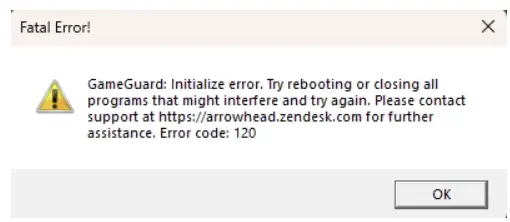
You launch Helldivers 2 and one of two things happens. Either you get a black screen with the game's audio playing in the background — you can hear the menu ambience, sometimes even UI sounds — but nothing ever renders on screen. Or you get an explicit GameGuard error code 114 popup telling you the game can't start because the anti-cheat blocked the executable. In the black screen case, the game process is running. Task Manager shows helldivers2.exe and GameGuard.des both active and consuming resources. The game didn't crash — it's alive, it just won't render anything. Alt-tabbing, pressing Enter, or waiting doesn't fix it. You have to kill the process manually. The error 114 popup is more direct: GameGuard detected something it considers a conflict and refused to let the game load. The message typically says "GameGuard initialization error (114)" and the game closes immediately. Both variants hit at startup, before you reach the title screen. They're more common on systems running third-party antivirus, certain AMD GPU configurations, and machines with aggressive background process managers or virtual machine software installed.
What Causes This Error
Antivirus or Windows Defender blocking GameGuard — GameGuard.des and GnAuth.des exhibit rootkit-like behaviour by design, which causes many AV tools to quarantine or block them at runtime. GameGuard driver conflict with third-party software — virtual machine software (VMware, VirtualBox), VPN kernel drivers, or certain RGB software install kernel-level drivers that conflict with GameGuard's own kernel module. Outdated or incompatible GameGuard version — GameGuard updates itself separately from Helldivers 2. A failed self-update leaves a version mismatch that triggers error 114 on every launch. Corrupted GameGuard installation — the files inside the \Helldivers 2\bin\GameGuard\ folder can become corrupted independently of the main game files, since Steam's verify function doesn't always catch them. Missing admin rights for the GameGuard driver — GameGuard installs a kernel driver at launch. Without admin rights, it can't load the driver, produces a black screen or error 114, and blocks the game from rendering. GPU driver conflict producing the black screen — specific AMD driver versions have a known issue where GameGuard's DRM layer conflicts with the driver's anti-debugging protection and produces a permanent black screen instead of an error. Secure Boot or TPM conflicts — on some systems with Secure Boot enabled, GameGuard's unsigned kernel driver fails to load, resulting in error 114. Overlays injecting into the process — Discord, Steam, and third-party overlays can be interpreted by GameGuard as process injection attempts, triggering a hard block.
Step-by-Step Fix
Right-click helldivers2.exe in C:\Program Files (x86)\Steam\steamapps\common\Helldivers 2\bin\ → Properties → Compatibility tab → check Run this program as an administrator → click Apply. Do the same for GameGuard.des in the \bin\GameGuard\ subfolder.
Add the entire Helldivers 2 folder to your antivirus exclusions — C:\Program Files (x86)\Steam\steamapps\common\Helldivers 2\ — including the \bin\GameGuard\ subfolder specifically. If you're using Windows Defender, go to Windows Security → Virus & threat protection → Manage settings → Exclusions → Add an exclusion → Folder.
Delete the GameGuard folder entirely to force a clean reinstall of the anti-cheat. Go to C:\Program Files (x86)\Steam\steamapps\common\Helldivers 2\bin\ and delete the GameGuard folder. Then verify game files in Steam — right-click Helldivers 2 → Properties → Installed Files → Verify integrity of game files. Steam will redownload a fresh GameGuard install.
Why This Happens
GameGuard is a kernel-level anti-cheat developed by NPROTECT. It works by loading a driver at the Windows kernel level — the deepest layer of the operating system — so it can monitor for cheating tools before they can hide from the game. That depth is exactly what causes all these conflicts. When GameGuard loads its kernel driver, Windows treats it like any other kernel-level driver. If another driver already occupies overlapping memory space — a VM hypervisor, a VPN tunnel driver, certain RGB controllers — Windows can't load both safely. The result is either a hard block (error 114) or a partial load where the driver runs but the game's rendering pipeline can't initialize, leaving you with audio but a black screen. The antivirus conflict is a design tension that has no clean solution. GameGuard's behaviour — injecting into process memory, reading kernel structures, hooking system calls — is identical to what certain malware does. AV tools flag it on heuristics alone, even if they've whitelisted Helldivers 2's main executable. Arrowhead and NPROTECT have pushed several GameGuard updates since Helldivers 2 launched to reduce false positives and driver conflicts, but the underlying architecture means some conflicts will always exist depending on what else is running at the kernel level on your specific machine.
Frequently Asked Questions
Does this affect AMD GPUs more than Nvidia?
The permanent black screen variant is more common on AMD GPUs, specifically due to a conflict between older AMD driver versions and GameGuard's DRM layer. Updating to an AMD driver from mid-2024 or later clears it for most affected users. Nvidia GPUs can still hit error 114, but it's typically AV or overlay related rather than driver related.
I deleted the GameGuard folder and verified files, but the same folder redownloads and the error comes back. What now?
The redownloaded GameGuard files may be immediately getting quarantined by your AV before you even launch. Set up the folder exclusion in your AV before verifying files — that way the fresh download lands in an excluded path and won't get touched. Order matters: exclusion first, verify second.
None of these steps fixed it and I can't find a kernel conflict. What's the last resort?
Try a clean GPU driver install using DDU (Display Driver Uninstaller) in safe mode. Download DDU, boot into Windows Safe Mode, run DDU to fully wipe your GPU driver, reboot, and install the latest driver fresh. A partially corrupted driver state can produce GameGuard conflicts that won't clear with a standard driver update. If that still doesn't work, contact Arrowhead support at support.arrowheadgamestudios.com with your nProtect GameGuard logs from C:\Program Files (x86)\Steam\steamapps\common\Helldivers 2\bin\GameGuard\Logs\.
I'm getting error 114 specifically after a Windows Update. Is that related?
Yes. Windows Updates sometimes push new kernel-level components that change the memory landscape GameGuard expects. After a major Windows Update, delete the GameGuard folder and re-verify files — this forces GameGuard to reinstall its driver against the updated Windows kernel rather than the old one. It's a quick fix for post-update error 114 specifically.
How do I stop GameGuard errors from coming back after Helldivers 2 updates?
Keep your AV exclusion on the GameGuard folder permanently — that's the one that tends to break after game updates when files get replaced. After each major Helldivers 2 patch, delete the GameGuard folder, verify files, and relaunch. The 2-minute reset prevents the version mismatch that causes error 114 to resurface post-patch.
Summary
Two fixes cover the majority of cases. First, add C:\Program Files (x86)\Steam\steamapps\common\Helldivers 2\bin\GameGuard\ to your AV exclusions — that stops the most common block. Second, delete the GameGuard folder entirely and verify files in Steam to force a clean reinstall of the anti-cheat. Run helldivers2.exe as admin after that. If you're still on the black screen after those two steps, update your GPU driver — AMD users especially, since older drivers have a specific conflict with GameGuard's DRM layer. If error 114 persists, kill any VPN or VM software services running in the background before launch — their kernel drivers are the next most likely conflict. Check your GameGuard logs at C:\Program Files (x86)\Steam\steamapps\common\Helldivers 2\bin\GameGuard\Logs\ if you need to dig deeper — the log files name the specific conflict that's blocking the launch.