Hogwarts Legacy Out of Video Memory Fix — Rendering Resource Crash
Hogwarts Legacy
Troubleshooting Steps & Solutions
Close every background application consuming GPU resources before launching. This means Chrome (or any GPU-accelerated browser), OBS, Discord (full quit, not minimize), Spotify if it's using hardware acceleration, and anything on a second monitor playing video. VRAM from background apps doesn't auto-free when Hogwarts Legacy launches.
Lower Texture Quality and Shadow Quality in-game. Go to Settings → Display and set Texture Quality to High instead of Ultra, and Shadow Quality to High or Medium. These two settings alone account for the majority of VRAM consumption spikes in Hogsmeade and during shader compilation.
Update your GPU drivers with a clean install. Download DDU (Display Driver Uninstaller) from Wagnardsoft, boot into Safe Mode, wipe your current drivers, then install the latest driver directly from nvidia.com or amd.com. Hogwarts Legacy had dedicated NVIDIA driver optimizations — running a driver from before those shipped will keep triggering this crash.
Disable all GPU overlays. Turn off GeForce Experience overlay (GeForce Experience → Settings → General → toggle off in-game overlay), Discord overlay (User Settings → Game Overlay → off), and Xbox Game Bar (Windows Settings → Gaming → Xbox Game Bar → off). Each overlay running costs VRAM the game can't use.
If you're on NVIDIA and have Resizable BAR enabled in your BIOS, try disabling it. Go into your BIOS (usually DEL or F2 on boot), find Re-Size BAR Support or Above 4G Decoding, and disable it. Some RTX 30-series setups have a known conflict with Hogwarts Legacy's VRAM allocator when ReBar is active.
Increase your pagefile size. Go to Control Panel → System → Advanced System Settings → Performance → Settings → Advanced → Virtual Memory. Uncheck Automatically manage, set Initial size to 8192 MB and Maximum size to 16384 MB on your primary drive. Click Set → OK, then restart your PC before relaunching the game.
Delete the game's shader cache and let it recompile from scratch. Navigate to C:\Users\YourName\AppData\Local\Hogwarts Legacy\Saved\ and delete the ShaderCache folder if it exists. On Steam, you can also clear the shader cache via Steam → Settings → Shader Pre-Caching → Clear Shader Cache.
Verify game files to rule out a corrupt install triggering false VRAM errors. On Steam: right-click Hogwarts Legacy → Properties → Local Files → Verify integrity of game files. On Epic Games Store: click the three dots next to the game → Manage → Verify. On Game Pass / Xbox App: click the three dots → Manage → Files → Verify and repair.
Hogwarts Legacy Out of Video Memory Trying to Allocate a Rendering Resource
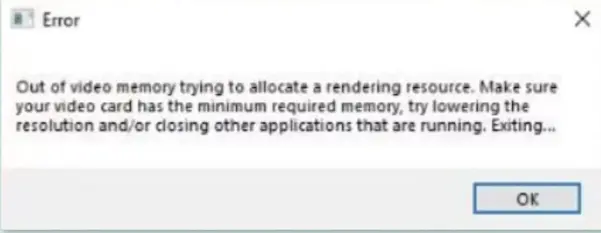
You launch Hogwarts Legacy, the shader compilation bar starts crawling across the screen, and before it even finishes — crash. Or you make it in-game and the second you walk into Hogsmeade, the whole thing locks up and throws: "Out of video memory trying to allocate a rendering resource." Sometimes it comes with a full CTD, sometimes the game freezes with the error sitting on screen until you force-close it. The timing is very specific for most players: shader compilation on first launch, or the Hogsmeade transition, which is one of the heaviest asset-load moments in the game. A smaller group hits it randomly in the open world or during side quests in dense areas. What makes this particularly maddening is that it hits high-end GPUs. Players with RTX 3080s, 3090s, and even 4080s have reported this error — cards that should have zero issue running the game. It's not just a budget-GPU problem. Windows 10 and Windows 11 both get hit, and it appears across Steam, Epic Games Store, and Game Pass versions.
What Triggers This Issue?
Hogwarts Legacy's VRAM allocation bug — the game is known to request more VRAM than it actually needs, overreporting usage and crashing even when physical VRAM is not actually full. Shader compilation overload on first launch — compiling shaders hammers the GPU hard. If another VRAM-hungry process is running simultaneously, the allocator runs out of headroom. In-game texture and shadow settings set too high — Texture Quality and Shadow Quality are the two biggest VRAM consumers. Running both at Ultra on a 8GB card is a reliable way to hit this crash. Outdated GPU drivers — early Hogwarts Legacy drivers had major VRAM management issues. NVIDIA released hotfix drivers specifically for this game at launch; running older drivers still causes this error. ReBar / Resizable BAR conflicts — on some NVIDIA setups, having ReBar enabled causes the game's VRAM allocator to behave incorrectly and over-allocate. Overlay software consuming VRAM — GeForce Experience overlay, Discord overlay, and AMD Adrenalin overlay all consume VRAM independently of the game. Every MB they take is MB unavailable to Hogwarts Legacy. DX12 instability on specific GPU/driver combos — Hogwarts Legacy uses DX12 by default, and certain driver versions handle its DX12 memory calls poorly, leading to allocation failures mid-load. Page file too small to compensate — when VRAM fills, the engine tries to offload to system RAM and then pagefile. A small pagefile causes the allocation to fail completely instead of degrading gracefully. Background GPU-accelerated apps — Chrome with hardware acceleration on, OBS on standby, or a second monitor playing video all quietly eat VRAM before the game even loads.
Common Error Queries & FAQs
I have a 12GB GPU — why am I getting an out of video memory error?
Hogwarts Legacy's VRAM allocator requests memory in large chunks and doesn't always release what it's done with. On top of that, overlays and background apps can quietly consume 500MB-1GB of your VRAM before the game even opens. Disable all overlays, close background apps, and drop Shadow Quality to High — that combination fixes it for most high-VRAM users.
Does this fix work for the Epic Games Store and Game Pass versions, not just Steam?
Yes. The VRAM allocation issue is in the game engine itself, not the launcher. All the graphics setting changes, driver updates, overlay disables, and pagefile adjustments apply regardless of where you bought it. The verify files step has launcher-specific instructions above for each platform.
Technical Analysis: Why It Happens
Hogwarts Legacy launched with a documented VRAM allocation problem in its rendering engine. The game — built on Unreal Engine 4 — requests VRAM in large blocks ahead of when it actually needs the memory, essentially reserving headroom it may never use. On GPUs with 8GB of VRAM or less, this over-reservation fills the available pool before the game even finishes loading the area, causing the allocator to hit a hard ceiling and throw the error. Hogsmeade is the worst offender because it's the densest area in the game at the point most players first encounter it. Hundreds of dynamic characters, detailed storefronts, particle effects from cauldrons and magical displays, and ambient occlusion at full resolution — it's a perfect storm for a GPU that's already been pushed by shader compilation. The shader compilation crash is a slightly different mechanism: compiling shaders is itself a GPU-intensive operation that consumes temporary VRAM. If other processes are competing for that VRAM at the same time, the game runs out of allocation space mid-compile and fails. Avalanche Software has patched several aspects of this issue since launch, but the core VRAM over-allocation behavior hasn't been fully resolved as of 2025/2026 builds. Reducing Texture and Shadow Quality remains the most reliable mitigation because it directly reduces the size of the memory blocks the game tries to reserve.
Summary
The two fixes that work for most players are dropping Texture Quality and Shadow Quality to High in display settings and doing a clean GPU driver reinstall with DDU. Do both before anything else. If you're crashing specifically during shader compilation, shut down every background app and overlay before launching — Chrome, Discord, OBS, all of it — and let the shaders compile with the GPU free to focus. Still crashing after that? Check whether Resizable BAR is on in your BIOS and try disabling it, then rebuild your shader cache by deleting the ShaderCache folder in AppData\Local\Hogwarts Legacy\Saved\. That covers the most common hardware combos hitting this error.