Marvel's Spider-Man Remastered DirectX 12 Device Hung 0x887a0006 Fix
Marvel's Spider-Man Remastered
Troubleshooting Steps & Solutions
Open Steam, right-click Marvel's Spider-Man Remastered, go to Properties > Local Files, and click Verify Integrity of Game Files. Corrupt RT shader files from a previous update can break the ray tracing pipeline specifically without affecting anything else.
Clean install your GPU driver. On Nvidia: download from nvidia.com, run the installer, pick Custom Installation, and check Perform a clean installation. On AMD: run the AMD Cleanup Utility before installing the latest driver from AMD's site. Nixxes has confirmed RT stability improvements that require updated driver versions.
In-game, go to Display > Ray Tracing and set Ray Traced Reflections to Low or Off. Leave other RT settings enabled if you want them — Reflections alone is the heaviest RT load during city traversal and reducing just that setting stops the crash for most players.
Set a framerate cap. Go to Display Settings and set Max Frame Rate to your monitor's refresh rate or 60. An uncapped framerate with RT on pushes constant full GPU load, and the spike during heavy traversal scenes puts it over the edge.
Enable DLSS (Nvidia) or FSR (AMD) in Display > Upscaling and set it to Quality or Balanced. Native resolution plus RT is peak demand — upscaling cuts the render workload enough to prevent the DX12 timeout in many cases where lowering RT settings alone doesn't.
Open MSI Afterburner or your OC tool and reset core clock and memory clock offsets to 0. Test a full traversal session through a glass-heavy district before re-applying any offset. RT traversal load is spiky and irregular in a way that flat benchmarks don't replicate.
Open Nvidia Control Panel > Manage 3D Settings > Program Settings, add Spider-Man Remastered, and set Power Management Mode to Prefer Maximum Performance. This stops the driver from dropping clock speeds during load transitions, which is one of the triggers for the device hung fault.
If crashes continue with RT tweaked, go to Display Settings and switch from DirectX 12 to DirectX 11. You lose RT support entirely but this confirms whether it's a DX12-specific driver bug on your hardware — and for some GPU configs, DX11 is the only stable path with this game.
Marvel's Spider-Man Remastered DirectX 12 Device Hung Error 0x887a0006 — Ray Tracing Crash Fix
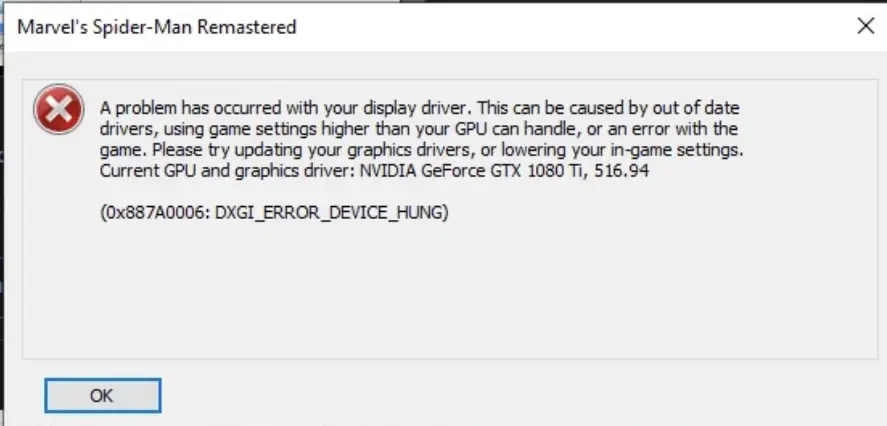
You're mid-swing through Manhattan with ray tracing on, the city looks incredible — and then it's gone. Hard CTD, sometimes with a Windows popup showing error code 0x887a0006, sometimes the game just vanishes silently. This crash has a very specific trigger: ray tracing active during fast traversal through dense city sections. Static indoor scenes and slow combat rarely cause it. The problem lives in the open-world swing sections where the camera is moving fast, buildings are reflecting everything, and the GPU is working hardest. Both Nvidia RTX and AMD users hit it, but RTX card owners report it more frequently. It's not a hardware tier problem — players on 4080s and 4090s have posted about it alongside mid-range GPU owners. The pattern doesn't lie: if you can crash it consistently by swinging hard through a glass-heavy district with RT on, that's the device hung fault doing exactly what it sounds like.
What Triggers This Issue?
GPU driver timeout under RT load — Fast traversal causes sharp GPU workload spikes. Drivers that predate Nixxes' latest fixes mishandle those spikes and trigger a device hung fault. VRAM pressure during fast scene streaming — Swinging fast means the game streams and ray-traces new geometry every frame. Hitting VRAM limits mid-swing stalls the DX12 device. Ray Traced Reflections at high quality — This specific setting carries the heaviest per-frame GPU cost. Running it at High or Ultra during traversal is the most common crash trigger. Uncapped framerate with RT on — No frame limit means the GPU is running at full load constantly. During RT traversal spikes, that pushes right past the driver's stability threshold. GPU overclock instability — Variable, spike-heavy RT load exposes overclocks that pass every benchmark without flinching. Even +50MHz core offset can be enough to cause the hang. Corrupt RT shader cache — A bad shader cache entry for RT geometry can cause the GPU to stall on a specific building type or reflection source, crashing consistently in the same spot. Power or thermal throttle mid-swing — A GPU that hits its power limit mid-load drops clocks suddenly. That voltage instability under DX12 command queues produces the hung device error. DLSS or FSR disabled at native resolution — Running native resolution with RT on is peak GPU demand. Upscaling cuts render load enough to prevent the hang on many configurations.
Common Error Queries & FAQs
Can this crash happen with ray tracing fully disabled?
The 0x887a0006 device hung during traversal is almost exclusively a RT load issue. Without RT on, this specific crash pattern should stop. You might still see other crashes for unrelated reasons, but if the CTD tracks consistently with swinging through the city with RT on, disabling RT entirely stops it.
Is this a Steam-exclusive issue or does it also affect Epic Games versions?
Both. The crash is GPU and driver-side, not launcher-side. Nixxes built one PC executable for both storefronts, so the fix steps are identical regardless of where you bought it.
I lowered RT Reflections and it still crashes. What next?
Disable RT entirely and do a full traversal session. If it's stable without RT, the issue is definitively driver instability under RT load — try rolling back one driver version to find a stable build. If it crashes with RT fully off, verify files and check for GPU hardware issues with FurMark.
Technical Analysis: Why It Happens
The 0x887a0006 error code is DXGI_ERROR_DEVICE_HUNG. In plain terms: the game sent a command to the GPU through DirectX 12, and the GPU never came back. Windows has a watchdog mechanism called TDR — Timeout Detection and Recovery — that monitors for this. If the GPU doesn't respond within the timeout window, Windows tries to reset the driver. CS2 handles this gracefully sometimes; Spider-Man Remastered doesn't, and the process dies. Fast city traversal with ray tracing is one of the heaviest real-time workloads in PC gaming. Every frame, the game is ray-casting light against new building geometry, rendering reflections on moving glass surfaces, computing ambient occlusion — all while the asset streaming system is pulling in new city chunks because the camera is moving fast. The GPU workload doesn't scale smoothly; it spikes hard when a reflective building comes into frame. On drivers that predate Nixxes' patches, the DX12 command queue doesn't handle those spikes gracefully. The GPU stalls, the TDR timeout fires, and the process dies. Nixxes has patched their RT command scheduling in several updates, but the driver-side timeout behavior is Nvidia and AMD's territory, not something they can fix entirely from the game side. Overclocked cards expose this more because an otherwise passing overclock fails under exactly the kind of irregular, spike-heavy load that RT traversal generates.
Summary
Drop RT Reflections to Low or Off and set a framerate cap — those two changes fix the traversal crash for the majority of players without requiring you to ditch ray tracing entirely. If that doesn't do it, do a GPU driver clean install and enable DLSS or FSR. That covers nearly every case. Still crashing? Set Power Management Mode to Prefer Maximum Performance in Nvidia Control Panel and drop your GPU overclock to stock. If nothing else works, switch to DirectX 11 in Display Settings to confirm whether it's a DX12 driver bug specific to your hardware before considering a full game reinstall.