
Controller Buttons Not Working on PC? 9 Fixes to Try
Identify whether unresponsive controller buttons come from the device, connection, Windows, browser mapping or a specific game.
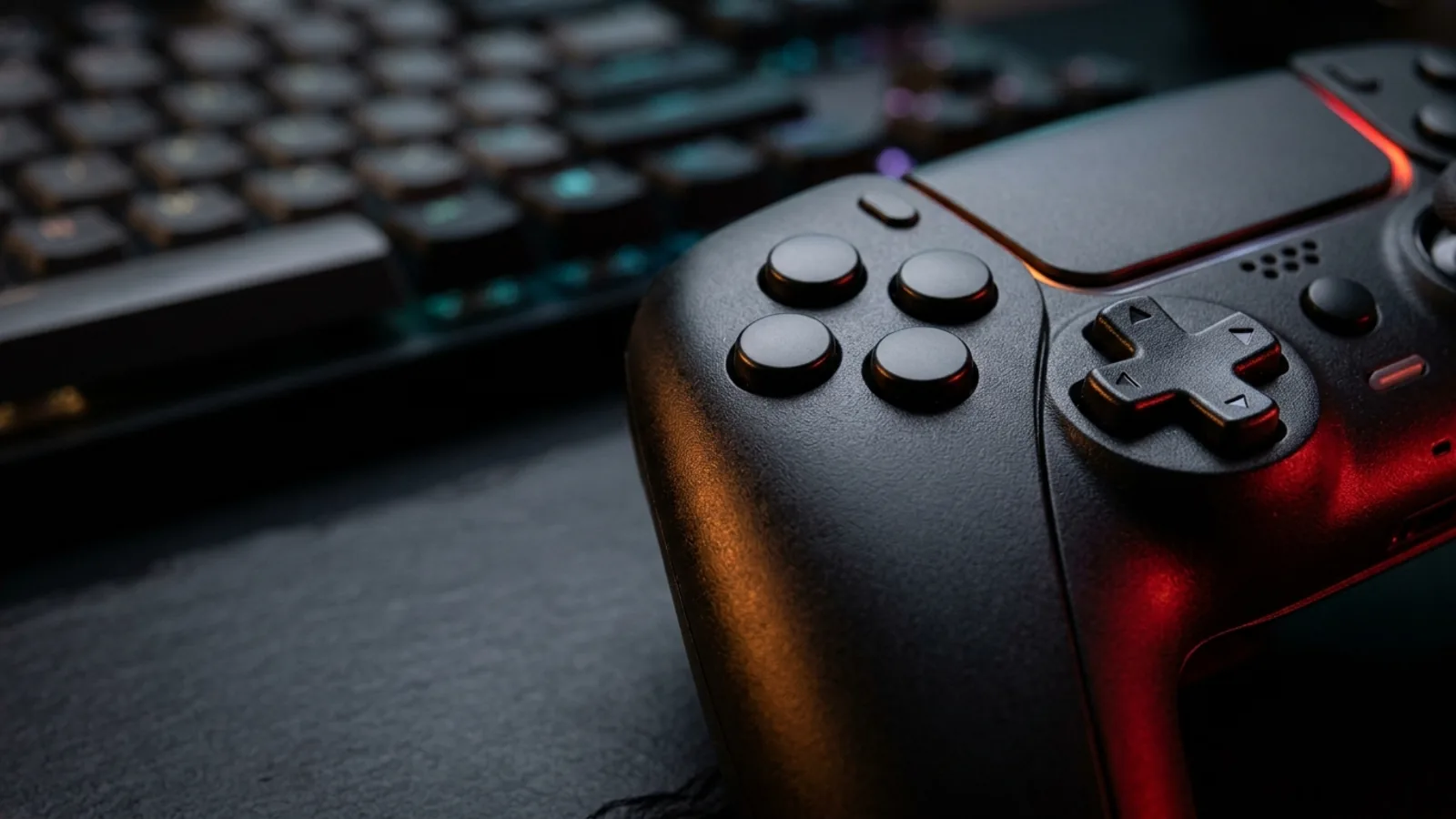
A controller that powers on but ignores button presses can be frustrating. Sometimes the issue is the USB cable or Bluetooth connection. In other cases, Windows detects every input correctly and only one game is failing to respond. Those situations call for different fixes.
Start by separating three questions: Does the operating system detect the controller? Does a tester receive the button presses? Does the affected game react to them? That simple comparison can save time and prevent unnecessary resets or repairs.
First, identify the exact symptom
| Symptom | What to check first |
|---|---|
| No buttons work anywhere | Device connection, data-capable USB cable, operating-system detection |
| Some buttons work, one does not | Individual input test, game binding, physical button condition |
| D-pad directions appear incorrect | Gamepad mapping, controller mode and game settings |
| Works in Windows/browser, not a game | Game controller support, bindings, Steam Input or other translation layer |
| Works over USB, not Bluetooth | Pairing and wireless compatibility |
| Inputs seem doubled or mismapped | Conflicting controller-mapping utilities or duplicate virtual controllers |
Fix 1: Make sure your PC recognizes the controller
Disconnect and reconnect the controller. On Windows, press Win + R, type joy.cpl, and inspect the Game Controllers panel. If your device appears, select it and use the available Properties/Test interface to see whether button presses register.
If the controller does not appear at all, look at the USB or Bluetooth connection before changing game settings. An operating-system detection problem is not something a particular game's key bindings can repair.
Fix 2: Test button inputs outside the game
Open JoystickCheck's browser-based controller input tester. Keep the page active, press a controller button, and look for a corresponding change in the reported buttons. Test each face button, bumper, menu control, D-pad direction and stick click individually.
JoystickCheck currently provides general live button and axis readings through its main gamepad tester. Its separate dedicated Button Tester is not yet available, so use the existing online gamepad tester rather than looking for a dedicated mode.
How to interpret the result:
Fix 3: Try a different USB data cable and port
A controller can receive power through a charging-only cable without transferring button data. Try a cable known to carry data and a different USB port. Avoid testing through a questionable hub until a direct connection works reliably.
If the cable works intermittently, look for a loose connector or damaged cable. Do not force a connection or continue using visibly damaged hardware.
Fix 4: Re-pair the Bluetooth connection
Confirm the controller is connected—not merely saved as a previously paired device. If input is unreliable, disconnect it, follow the controller manufacturer's pairing procedure and connect again.
A successful USB test but failed Bluetooth test is a useful clue. It points toward wireless configuration or compatibility rather than proving that the buttons themselves are damaged.
Fix 5: Check the game's controller settings
In the affected game, verify that controller input is enabled and that the correct device is selected. Review button bindings, alternate control layouts, accessibility settings and any menu that switches between keyboard/mouse and controller input.
Some games do not support every controller without an input translation layer. If button presses work in an external tester, search the game's official controller-support information rather than assuming the device is defective.
Fix 6: Review Steam Input carefully
If the problem happens in a Steam game, inspect the game's Controller settings in Steam. Steam Input can help translate controllers for games, but it can also conflict with certain games or other remapping tools depending on the setup.
Record the original setting, test one change, then revert if it makes things worse. Avoid turning off controller-related software globally as a blanket fix.
Fix 7: Look for conflicting remapping software
Applications that create virtual controllers or remap buttons can sometimes cause duplicate or unexpected inputs. If you use such tools, identify which application is handling the controller and test with a simplified configuration.
Do not uninstall drivers or remove unfamiliar system devices blindly. First establish whether the conflict exists by comparing the same controller in Windows, a browser and the affected game.
Fix 8: Restart the affected app and check device support
Close the game completely, reconnect the controller and reopen the game. If the controller still is not detected, consult the game's official support documentation and controller compatibility notes. Try another game with known controller support to isolate whether the issue is game-specific.
If the controller's manufacturer provides an official firmware or configuration utility, check its instructions before updating. Avoid unofficial firmware downloads.
Fix 9: Evaluate one consistently failing button
When one physical button repeatedly fails across Windows, the browser and multiple games, a physical issue becomes more plausible. Test several press-and-release cycles, compare a second connection method and look for obvious external damage.
Do not open or disassemble a controller unless you understand the risks and warranty implications. If the button is consistently unresponsive across independent tests, manufacturer support or a qualified repair service may be appropriate.
What if the D-pad works but the face buttons do not?
A mapping problem can expose D-pad directions differently from face buttons. Compare the reported button indexes and labels rather than assuming every controller uses the same A/B/X/Y layout. Some non-standard controllers expose different input arrangements to browsers and games.
What if buttons work but the analog stick feels wrong?
That is a different problem. Stick readings can be affected by calibration, deadzones and response curves. Read our analog stick centering guide to diagnose the resting values, or see our Controller Sensitivity Converter to compare controller turn behavior.
Frequently asked questions
Why is my controller connected but no buttons work?
A powered controller is not proof of a working data connection. Check your operating system's controller panel, USB cable, Bluetooth pairing and input readings before changing game settings.
Why does my controller work in Steam but not outside Steam?
Steam Input or a game-specific controller layer may be translating the device. A different game or application may require another supported controller mode or mapping.
Can I test a single controller button online?
Yes. Use a browser gamepad tester and watch whether that button changes its reported state. The test shows what the browser receives; it does not independently certify the button's internal hardware.
Does a wrong button label mean my controller is broken?
No. Different controller mappings can use different labels and indexes. Check the reported mapping and the game's layout first.