Elden Ring Easy Anti-Cheat Hash Catalogue Error Fix — CTD on Launch
Elden Ring

Elden Ring Easy Anti-Cheat Hash Catalogue Error — Crash to Desktop After Launch Screen
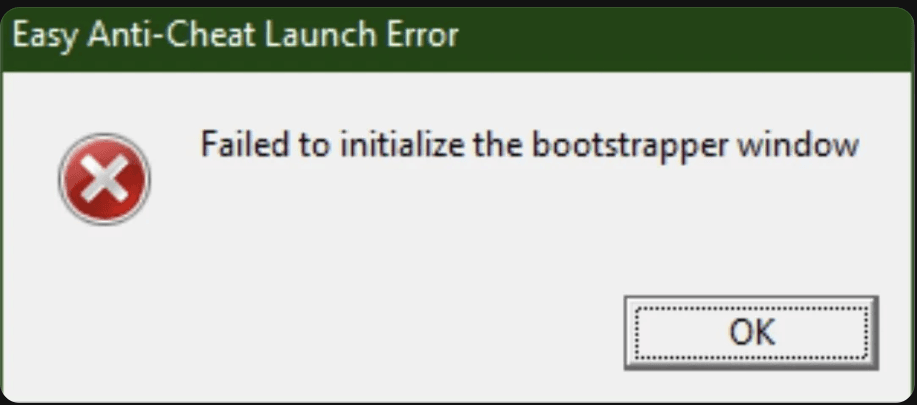
You hit play in Steam, the Easy Anti-Cheat splash screen loads, the progress bar finishes — and then nothing. A white screen flashes for half a second and the game CTDs before you ever see the title screen. No error code popup in most cases, sometimes a brief Windows dialogue mentioning EasyAntiCheat.exe. The game never reaches the FromSoftware logo. This isn't a mid-game crash. It happens at the exact same point every time: right after EAC finishes its scan. Some players see a specific message referencing a "hash catalogue" or "hash mismatch." Others just get the white flash and a dead process in Task Manager. It hit a wide wave of players after specific Elden Ring patches, particularly ones that updated the EAC version bundled with the game. Windows 10 and Windows 11 are both affected, though certain Nvidia driver versions made it worse on 30-series and 40-series cards. Fresh installs are not immune — this can happen on a brand new download too.
What Causes This Error
Corrupted or outdated EAC installation — the anti-cheat files bundled with Elden Ring don't always update cleanly when the game patches, leaving mismatched hash files that EAC rejects at launch. Missing or blocked EAC service — if Easy Anti-Cheat's Windows service isn't running or was blocked by antivirus, the hash check can't complete and the process dies. Antivirus quarantine — Windows Defender or third-party AV tools sometimes flag EasyAntiCheat_EOS.exe or start_protected_game.exe as suspicious and silently block them. Launching through a shortcut or third-party launcher — Elden Ring's EAC requires the game to launch via Steam specifically. Shortcuts that point directly to eldenring.exe bypass EAC's expected handshake and trigger the hash error. Corrupted game files after a patch — a partial or interrupted update can leave game binaries in a state that doesn't match EAC's expected hash catalogue. Conflicting overlays — Discord overlay, GeForce Experience overlay, or MSI Afterburner running at launch can interfere with EAC's process injection and cause an immediate CTD.
Step-by-Step Fix
You need to close the Elden Ring game. Then you should open the antivirus software on your computer. Now you have to add the Elden Ring folder to the list of excluded things. This folder is usually found in C:\Program Files (x86)\Steam\steamapps\common\ELDEN RING\. You have to do the thing for the EasyAntiCheat folder which is, in C:\Program Files (x86)\EasyAntiCheat\. This means the Elden Ring and the EasyAntiCheat will be ignored by the antivirus software.
In Steam, right-click Elden Ring → Properties → Installed Files → Verify integrity of game files. Let it finish. This catches corrupted binaries from bad patch downloads.
Open File. Go to C:\Program Files (x86)\Steam\steamapps\common\ELDEN RING\Game\.
- Now run EasyAntiCheat_EOS_Setup.exe as an administrator.
- Click on Repair Service.
- After it finishes, reboot your computer.
- Make sure ELDEN RING Game is closed.
- The ELDEN RING Game should now work properly with Easy Anti-Cheat.
Why This Happens
Easy Anti-Cheat works by building a hash catalogue — essentially a fingerprint of every protected game file. When you launch Elden Ring, EAC compares the live files on your drive against that catalogue. If anything doesn't match — even by one bit — it kills the process before the game loads. That's the hash catalogue error. The problem is that FromSoftware patches sometimes update the EAC version bundled with the game, and Steam doesn't always cleanly replace the old EAC service on every machine. You end up with a newer hash catalogue expecting newer EAC binaries, but the old service is still running the check. They disagree, and EAC shuts it down. Antivirus software makes this worse. Some AV tools quarantine EAC components mid-update because the behaviour — a process injecting into another process and checking file hashes — looks like malware behaviour to heuristic scanners. Once a file is quarantined, the hash check will always fail because the file is either missing or modified. This isn't a bug Bandai Namco has fully addressed. It resurfaces after patches. Running the EAC repair tool directly is the fastest fix because it re-registers the service against the current game files, rebuilding the handshake from scratch.
Frequently Asked Questions
Does this affect the Steam version only, or does it happen on other storefronts?
Elden Ring is Steam-exclusive on PC, so yes, this is a Steam-only issue. That said, the EAC error itself is tied to the anti-cheat service, not Steam's DRM — the steps above apply regardless.
I verified game files and repaired EAC but it's still crashing. What now?
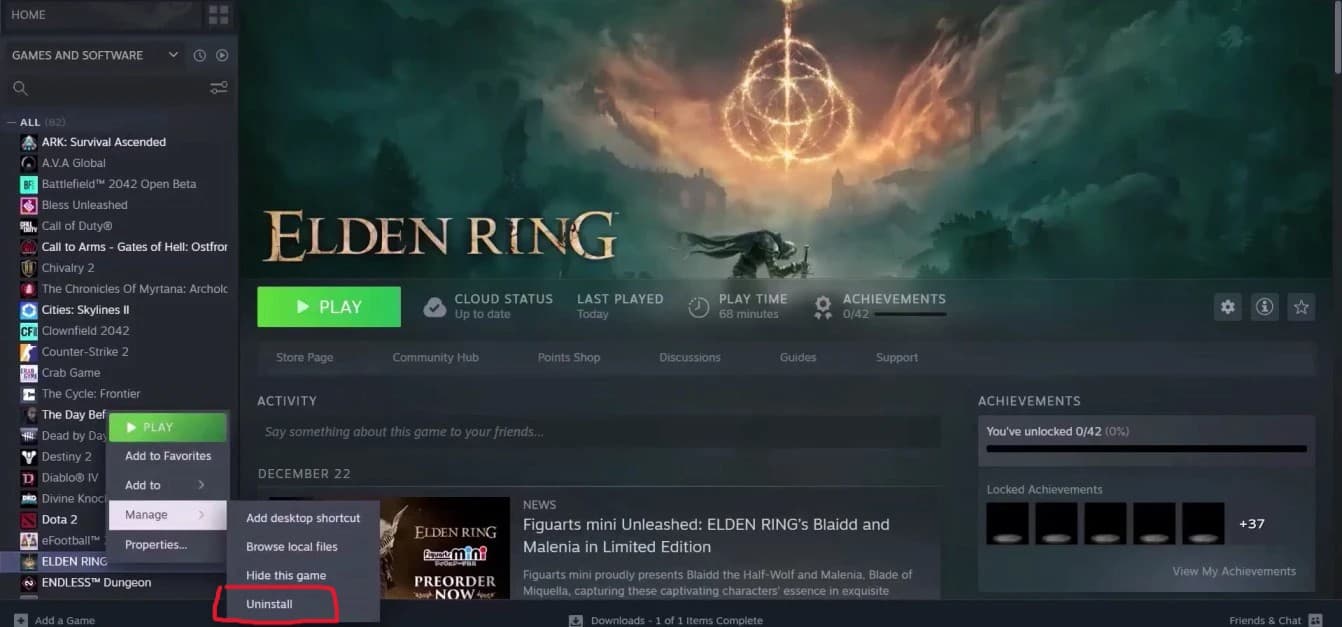
The next step is a full clean uninstall — delete the game folder manually after uninstalling through Steam so no leftover EAC files remain. Reinstall, run EAC setup as admin before launching, and make sure your AV exclusions are in place before the first boot.
Will disabling overlays affect my gameplay or recording?
Disabling Discord's in-game overlay won't affect voice chat — it just removes the on-screen UI. GeForce Experience overlay being off means no Shadowplay hotkeys during the session, but you can re-enable it after confirming the fix works. Rule them out first, then turn them back on one at a time.
I'm getting a slightly different EAC error — "EAC sandbox not active." Is this the same fix?
Related but different. The sandbox error usually means EAC's Windows service isn't running at all. Go straight to Step 6 — open services.msc, find EasyAntiCheat, and make sure it's set to Automatic and running. If it won't start, run the EAC setup repair in Step 3 first.
How do I stop this happening again after the next Elden Ring patch?
After any major Elden Ring update, run the EAC repair tool from C:\Program Files (x86)\Steam\steamapps\common\ELDEN RING\Game\EasyAntiCheat_EOS_Setup.exe before launching. Takes 30 seconds and prevents the hash mismatch from stacking up after a patch.
Summary
Most of the time this comes down to two things: a stale EAC service that didn't update cleanly with the last patch, or an antivirus tool quietly blocking EAC components. Start with Step 3 — the EAC repair tool run as admin — because that fixes the majority of cases in one shot. If that doesn't clear it, verify game files in Steam and kill all your overlays before relaunching. If you're still stuck after all of that, the clean uninstall is your last clean option. Delete the folder manually, reinstall fresh, add the game folder to your AV exclusions before you even launch for the first time, and run EAC repair before hitting Play.