Elden Ring Stuttering and Lag Fix
Elden Ring

Elden Ring Severe Performance Issues, Micro-Stuttering, and Sudden FPS Drops Fix
So you want to explore the really dangerous Lands Between in Elden Ring but your game is always freezing or running very slow. Elden Ring is a massive open-world game but it does not work well on computers. A lot of players get frustrated with the game freezing for a moment and then the visuals do not move smoothly especially when they go to a new place or fight a big boss. It is really bad when you time a move to avoid a big boss but the game freezes for a tiny moment and you die right away. It is weird that these problems happen on all kinds of computers—even the really good gaming PCs with advanced graphics cards. Many people say they are playing the game smoothly at 60 frames per second but then it gets really slow and only runs at 20 frames per second without any reason. If you are tired of the game running badly freezing and the screen tearing then you are in the right place. On this page we will show you ways to make Elden Ring run better and fix the problems with the game freezing.
What Causes This Error
To fix the stuttering issue in Elden Ring we need to understand how the game handles resources in the background. The main reason for micro-stuttering is Direct3D 12 Shader Pipeline Compilation. This game compiles graphics assets in real-time unlike older games that load shaders beforehand. So when a new enemy attacks or you enter a zone your processor quickly loads new code causing a performance problem. Another big cause of stuttering is the game's background anti-cheat system, Easy Anti-Cheat (EAC) and poor Windows optimization. The game limits the frame rate to 60 FPS internally. When Windows tries to balance power between your CPU and graphics card it can mistakenly slow down the game. Also Microsoft Device Association Root Enumerator issues constantly scan for hardware changes in the background. This causes a 1-second freeze every few minutes for many PC users.
Step-by-Step Fix
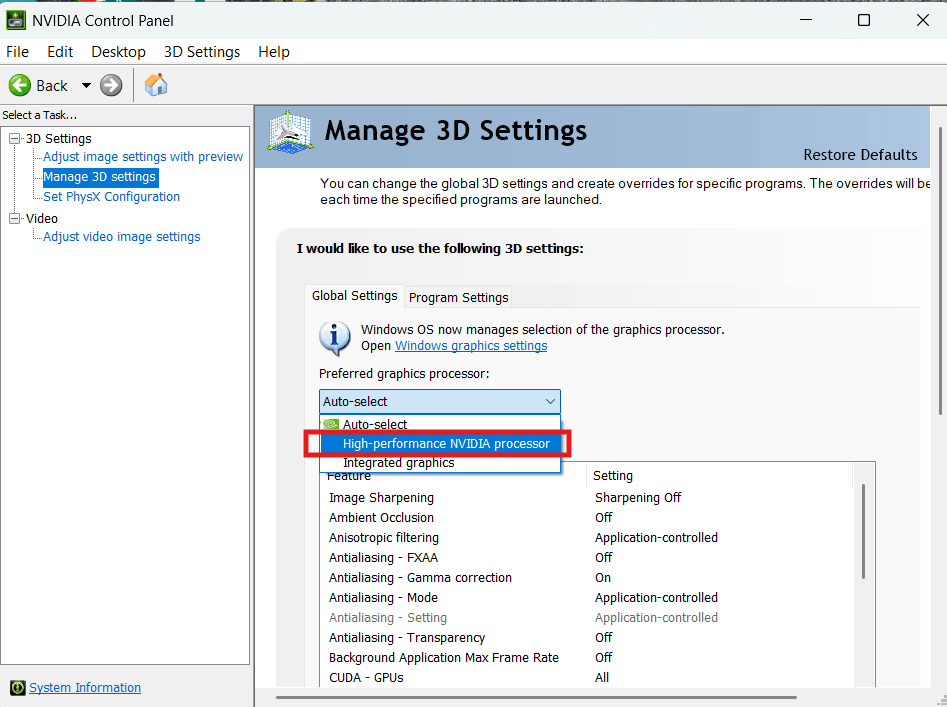
Sometimes Windows runs Elden Ring on your CPU's integrated graphics instead of your dedicated graphics card.
- Right-click anywhere on your desktop and select NVIDIA Control Panel.
- On the left sidebar, click Manage 3D Settings.
- Select the Global Settings tab.
- Change the Preferred graphics processor to High-performance NVIDIA processor.
- Click Apply.
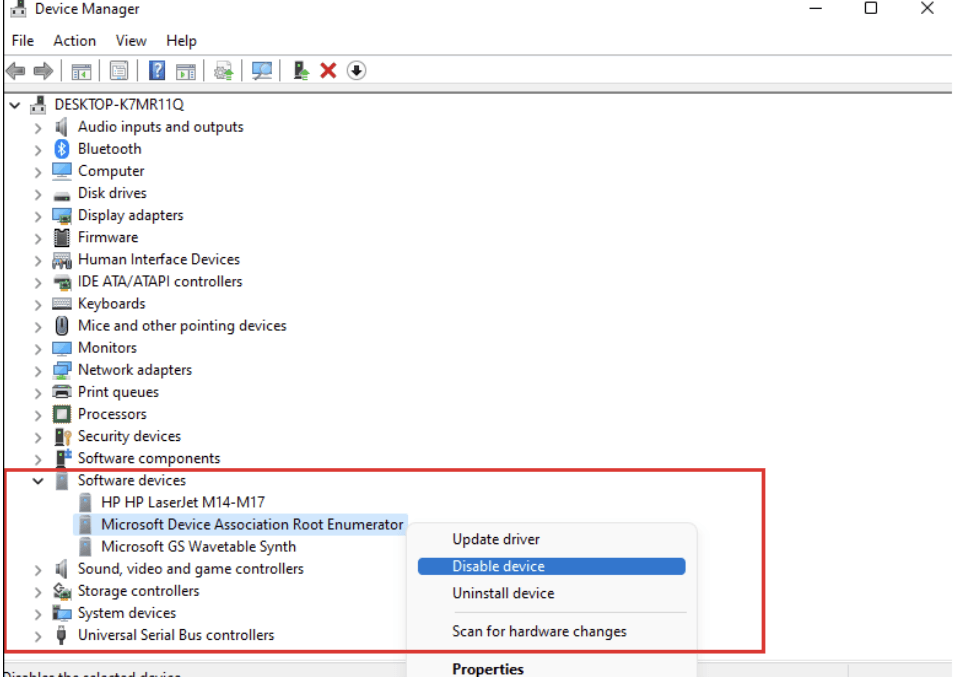
This is a proven fix for the random 1-second freezes that occur every few minutes.
- Right-click the Windows Start Button and select Device Manager.
- Scroll down and click the arrow to expand the Software devices category.
- Find Microsoft Device Association Root Enumerator in the list.
- Right-click on it and choose Disable device (Click Yes if a warning popup appears).
Why This Happens
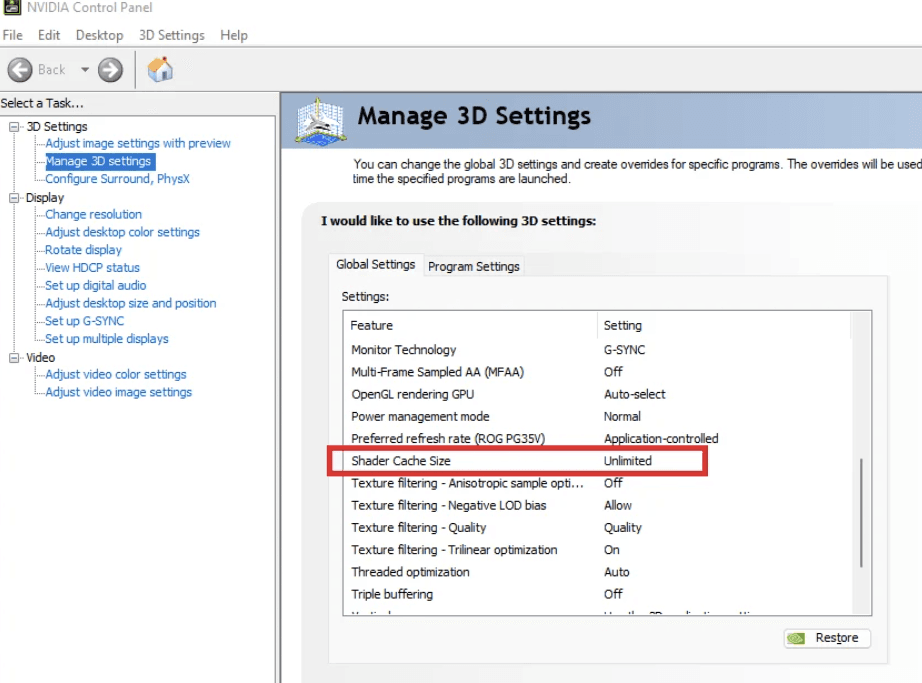
In plain and simple terms, Elden Ring’s game engine loads information in a very unoptimized way on computers. When you play a massive game, your graphics card needs to know exactly how to draw the shadows, magic spells, and landscapes. In a perfect setup, the game loads all this data while you are waiting on the loading screen. However, this game’s code tries to build the visuals right as they appear on your screen. For example, when a huge boss starts swinging its flaming golden blade, it becomes necessary for your computer to create the visual graphics data right away. In case your shader cache limit is lower than it should be by default, then your computer loses frames while trying to process the new data file. Also, as the game requires a background application known as Easy Anti-Cheat so as to prevent any cheating while playing online, your computer continues to scan the file in the background. By forcing Windows to operate the game client at full potential speed, allowing your graphics card to have all the storage capacity it needs for the pre-built graphics data, you give your PC enough space to work.
Frequently Asked Questions
Will disabling the Microsoft Device Association Root Enumerator harm my computer?
No it is totally fine. When you disable this thing Windows just stops looking for devices that are not even connected to your computer anymore. It is completely safe. It will not make a difference when you use your computer or play games.
Can I safely unlock the 60 FPS limit using third-party mods?
There are mods that can do this. If you use them when you play online you might get in trouble, with Easy Anti-Cheat and they could ban your account. So it is better to stick with the normal 60 FPS and try to fix the parts of the game that are slow instead.
Summary
To finish up getting rid of those stutters in Elden Ring is pretty much, about changing how Windows handles power and things running in the background. You do not have to erase everything on your computer or wait around for another update just to get good frames. By setting your graphics control panel to unlimited shader caching and turning off background device monitors that you do not need you can finally have a really smooth and lag-free time playing Elden Ring in the Lands Between.