Resident Evil 4 Remake D3D Device Lost Fix — Fatal D3D Error on Launch
Resident Evil 4 Remake

Troubleshooting Steps & Solutions
Launch RE4 Remake and go to Options → Graphics. Turn Ray Tracing to Off and set Hair Strands Quality to Off. Apply, save, and exit the game fully before relaunching — don't just back out.
Delete the shader cache to force a clean recompile. Close the game, then go to C:\Users\YourName\AppData\Local\RE4\ and delete the ShaderCache folder inside it. Relaunch — the game will recompile shaders from scratch on the main menu before you load in.
Update your GPU driver. Nvidia: open GeForce Experience → Drivers → Express Install. AMD: open AMD Software: Adrenalin Edition → Home → Check for Updates. If you updated recently and the crash started after, roll back one version — right-click desktop → Display Settings → Advanced Display → Display adapter properties → Driver tab → Roll Back Driver.
Verify game files in Steam. Right-click RE4 Remake → Properties → Installed Files → Verify integrity of game files. A corrupted shader or asset file from a partial patch download is enough to trigger D3D device lost on the first real scene load.
Disable all overlays before launching. GeForce Experience: Settings → General → In-Game Overlay → off. Discord: Settings → Game Overlay → off. Steam: right-click RE4 Remake → Properties → General → uncheck Enable the Steam Overlay while in-game.
If you're overclocking your GPU, open MSI Afterburner and reset everything to stock — core clock, memory clock, and power limit. RE Engine's DX12 workload is one of the most punishing for OC stability on PC, and a marginal OC that's stable in other games will fail here.
If the crash persists with RT off, force DX11 mode as a workaround. Right-click RE4 Remake in Steam → Properties → General → Launch Options and type -dx11. This bypasses the DX12 path entirely and eliminates D3D device lost crashes tied to DX12 initialization, at a small performance cost.
Resident Evil 4 Remake D3D Device Lost — Fatal D3D Error Crash on Chapter 1 or Ray Tracing Settings
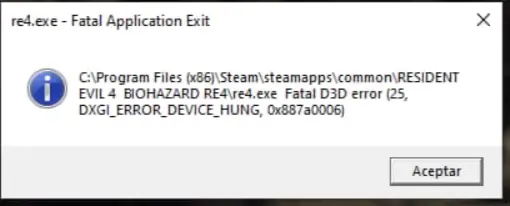
You boot RE4 Remake, get through the Capcom logo, and then hit a hard crash either right as Chapter 1 starts loading or immediately after changing graphics settings that involve Ray Tracing and Hair Strands together. The error message reads "Fatal D3D Error" or "D3D Device Lost" — sometimes with a hex code, sometimes just the bare message before the game closes. It doesn't freeze. It crashes cleanly, drops you to desktop, and occasionally throws a crash report window. The game never actually renders gameplay. This one is specific. Players with Ray Tracing capable GPUs hit it more than those running without RT. The combination of Ray Tracing and Hair Strands enabled simultaneously is a documented trigger — Capcom acknowledged it. But it also happens on Chapter 1 loads on certain driver versions even with RT off, which points to a broader DX12 initialization problem in RE Engine on PC. Nvidia RTX cards are the most commonly reported hardware, particularly 20-series and 30-series. AMD RX 6000 and 7000 series users hit the Chapter 1 variant more than the settings variant. Windows 10 and Windows 11 are both affected.
What Triggers This Issue?
Ray Tracing and Hair Strands enabled simultaneously — RE Engine can't handle both features active at the same time on most consumer GPUs. This is a known engine-level bug that Capcom has partially addressed in patches but hasn't fully resolved. Outdated GPU driver — RE4 Remake's DX12 implementation is sensitive to driver version. Specific Nvidia and AMD driver releases introduced D3D device loss bugs with RE Engine that weren't present on older drivers. VRAM overflow from combined RT + Hair Strands — the two features together push VRAM usage past what most cards have headroom for, causing the D3D device to lose its memory context and crash. DX12 initialization failure on Chapter 1 load — RE Engine's shader compilation hits a specific bottleneck on Chapter 1's first load. On affected driver versions, this results in a D3D device reset that the game can't recover from. Corrupted shader cache — RE4 Remake pre-compiles shaders on first launch. A corrupted or incomplete shader cache causes DX12 to fail when the game tries to draw the first real scene. Overclocked GPU — D3D device lost errors are a classic sign of GPU instability under sustained load. Any OC on the GPU or VRAM can cause this exact error under RE Engine's heavy DX12 workload. Conflicting overlays during DX12 initialization — GeForce Experience and Discord overlays have both caused D3D device lost crashes in RE Engine games specifically, not just RE4 Remake.
Common Error Queries & FAQs
Can I use Ray Tracing at all, or does any RT setting cause this?
Ray Tracing alone doesn't reliably trigger the crash — it's the combination of RT and Hair Strands active together that causes consistent D3D device lost errors. Try enabling RT with Hair Strands set to Off and test stability. Many players run RT fine without Hair Strands enabled.
Does the -dx11 launch option break anything?
Ray Tracing is DX12-only, so forcing DX11 disables RT entirely regardless of your in-game settings. You'll also lose some minor DX12-specific rendering features. Performance-wise DX11 is actually smoother on many mid-range rigs in RE4 Remake because it avoids the DX12 overhead that causes micro-stutters at Chapter transitions.
Technical Analysis: Why It Happens
The D3D Device Lost error means Direct3D — the graphics API RE4 Remake uses to talk to your GPU — lost its connection to the GPU mid-operation and couldn't recover. That connection is called a "device context," and once it's lost, the game has no way to continue drawing frames. It crashes. The Ray Tracing plus Hair Strands combination triggers this because both features make heavy, simultaneous demands on VRAM and on the GPU's compute units. RE Engine allocates VRAM for each feature separately without fully accounting for what the other is using. When both are active, the combined allocation overshoots available VRAM. The GPU driver has to evict data from VRAM to system RAM — a process called a "TDR reset" — and RE Engine can't handle the resulting device reset gracefully. It crashes instead of recovering. The Chapter 1 specific variant is a different issue. RE Engine compiles a burst of shaders at that exact transition point in the game. On certain driver versions, that burst causes a timeout in the GPU's command queue — the driver kills the command, which counts as a device loss, and again the game can't recover. Capcom has patched this multiple times. It's better than launch state but not fully resolved. The -dx11 launch option is still the most reliable workaround for machines that can't clear it through settings changes alone.
Summary
The fastest fix: go into graphics settings and turn off both Ray Tracing and Hair Strands, then delete the shader cache at C:\Users\YourName\AppData\Local\RE4\ShaderCache and let the game recompile clean. That clears the crash for the majority of affected players. If it still crashes on Chapter 1 after that, update your GPU driver — or roll back one version if you updated recently and the crash appeared right after. And if you're overclocking your GPU at all, reset to stock before testing. For anything that won't clear through settings and driver changes, add -dx11 to your Steam launch options. It disables RT but gives you a stable render path that doesn't hit RE Engine's DX12 device loss bug. Update your driver and verify files after adding it.